
Templates
A template is a message blueprint tied to one bot. Every message you broadcast starts as one, and every template is reviewed before it can be sent.
Go to Templates to see what you have, and New template to build one. Operators and owners can create and delete; viewers can look but not change.
The three types
- Basic
Plain text, up to 2,000 characters, optionally with reply buttons underneath. The workhorse for OTPs, order updates and short notices.
- Rich card
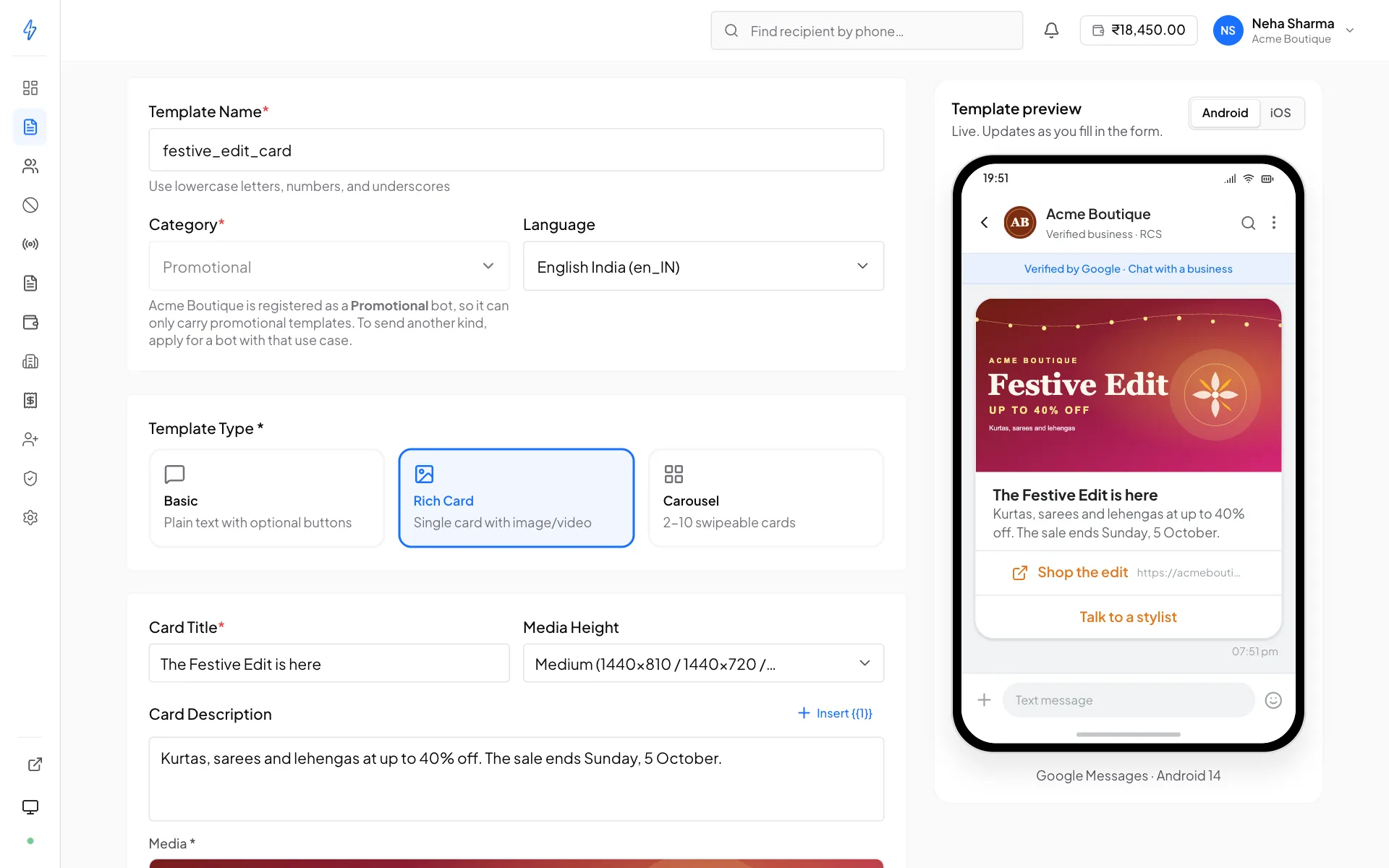
One card with an image or video, a title, a description and up to four buttons. Use it when the message is about one thing and you want it to look like something.
- Carousel
Between 2 and 10 cards the recipient swipes through, each with its own media, text and buttons. Use it for a set of products, offers or options.
Building one
Pick the bot
Templates belong to a specific bot. If you run several, check this before anything else, a template built against the wrong bot has to be rebuilt, not moved.
Name it and choose a category
The name is internal, pick something you will recognise in the broadcast composer six months from now (
order_shipped, nottemplate_3). The category is transactional, promotional or OTP, and should match what the message actually is. A bot registered for one message type can only carry that type, so for that bot the category is already set. Each bot keeps its own names: two bots can both have anorder_update, but one bot cannot have two. Submitting a name the bot already uses is refused with a message saying so.Choose the type and write the content
Basic, rich card or carousel. The preview on the right shows the message as it will appear on an Android device, updating as you type.
Add variables where the text changes per recipient
See below.
Add buttons
Reply buttons, link buttons, dial buttons. See below for the limits.
Submit
The structural validator runs immediately and shows every problem at once. Fix them, resubmit, and the template goes to review.
Finding one
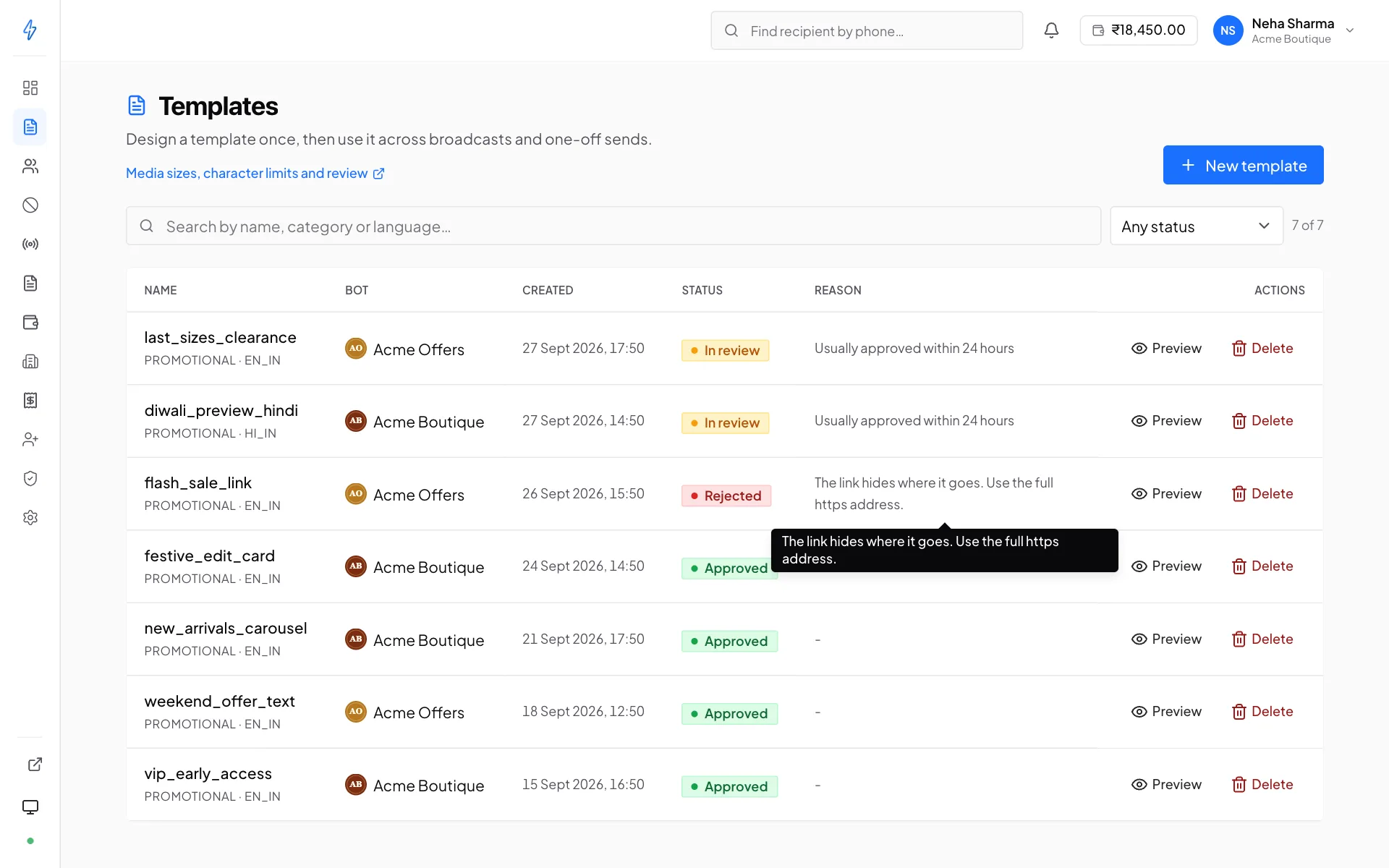
Once an account has more than five templates, a search box and a status filter appear above the list.
Search matches the template's name, category, language and id. The id is included because that is what a support conversation quotes back at you. The status filter narrows to Approved, In review or Rejected, and a count beside it shows how many of the total you are looking at.
Variables
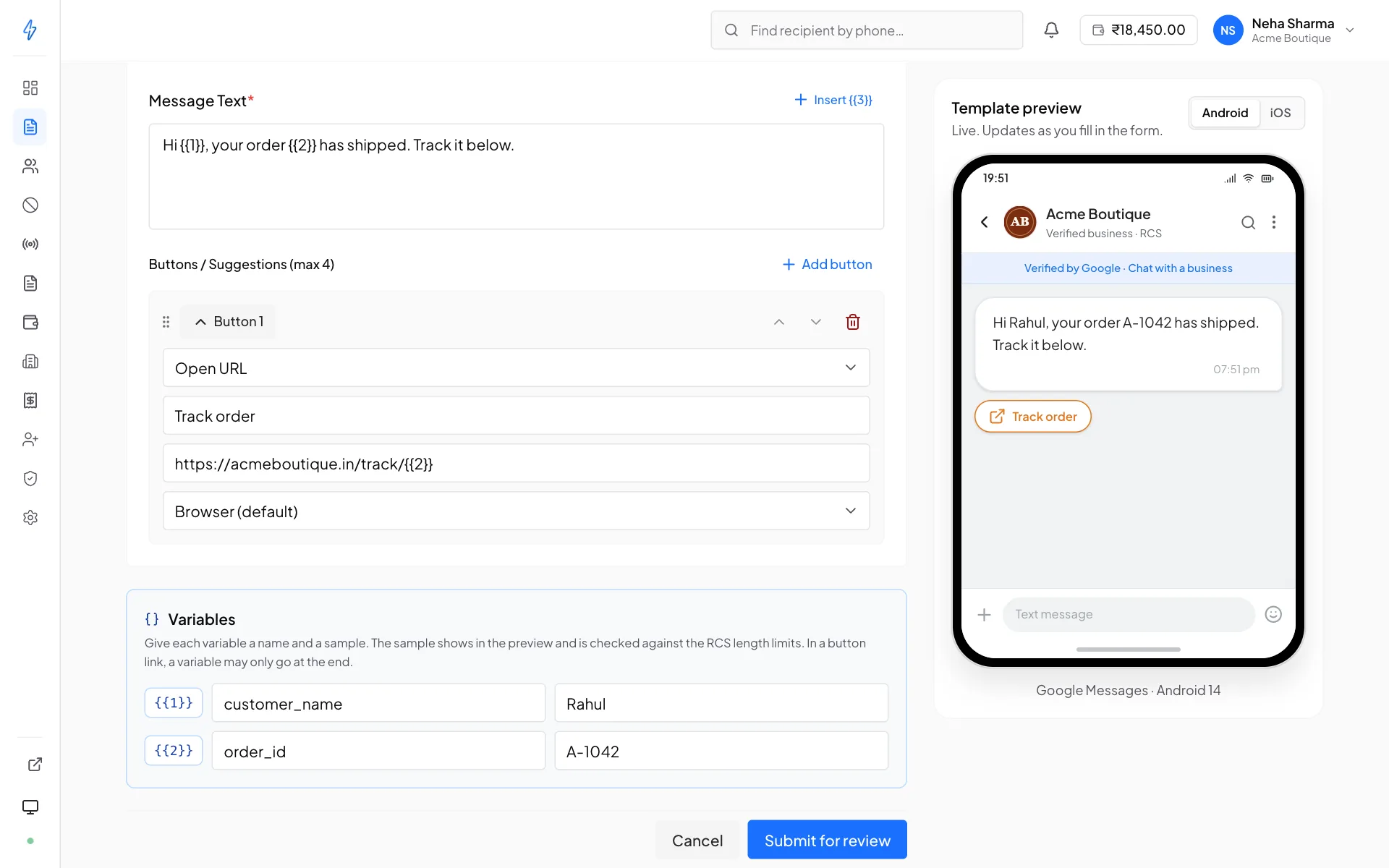
Anywhere the text differs per recipient, insert a variable: {{1}}, {{2}}
and so on, up to {{10}}. Number them from {{1}} with no gaps.
Message text:  Hi {{1}}, your order {{2}} has shipped.
Button link:   https://shop.com/track/{{2}}
Where they can go: message text, card title, card description, button
labels, and at the end of a button link, as above. A value in a link is
encoded for a web address: A 1/2 becomes A%201%2F2 in the path, and after a
? it is encoded as a query value.
Where they cannot: the card image or video, the card thumbnail, and a dial button's phone number. A template with a variable there is refused when you submit it.
To add one, place the cursor in the message text, card title or description
and click Insert {{n}}: the next number goes in at the cursor. In a
button label or at the end of a link, type it yourself.
Every variable then appears in the Variables box. Give each one a name
(customer_name, order_id) and a sample (Rahul, A-1042). The sample
is required: the preview shows it, and the length limits are checked with it
filled in. The name is what the broadcast composer shows when it asks which
column fills which variable.
Name variables even for a one-off send
You will forget the order. Everyone does. It costs ten seconds now and prevents sending someone's order ID as their first name.
Checks on submit
The template is checked with the samples filled in, and the limits (message text 2,000 characters, card title 200, card description 2,000, button label 25) apply to the filled text. A template that breaks a rule is refused with a message saying what to fix, for example:
Number the variables from {{1}} with no gaps: {{2}} is missingA template can have at most 10 variables, {{1}} to {{10}}A variable in the button 1 link must be at the end of the linkA variable can't go in the card image or video. Use variables in the text, titles, button labels, or at the end of a linkWith the sample values filled in: The card title is over 200 characters after filling the variables
Buttons
RCS calls them suggestions. Three kinds:
Limits and guidance:
- A rich card supports at most 4 buttons. Two reads better on a phone.
- Button labels are capped at 25 characters. The field stops there rather than letting you write a label the carrier will reject.
- Every URL must be
https://. Plainhttp://is rejected by the validator.
Media limits
These are hard caps, enforced at upload. Carousel limits are tighter than standalone ones because the recipient may load ten cards at once.
Accepted formats: jpeg, jpg, png, gif for images; mp4, mpeg,
mpeg4, m4v, h263, webm for video; pdf for documents.
Image dimensions
The carrier scales your image into a fixed slot, and the slot depends on the card width and the media height you pick. Supplying an image at the right aspect ratio is the difference between a card that looks designed and one that looks cropped.
For the two most common layouts specifically:
Leave a margin, and keep the edges empty
Around 25px of breathing room, with no logo or text near the edges. Different devices crop these slots slightly differently, and content at the boundary is the first thing to get cut.
Tall media shows only one button
If you choose a tall media height on a rich card, only the first button is visible to the recipient. The rest are still in the payload and still count against the limit. They simply cannot be tapped.
Either use a short or medium media height when you need more than one action, or accept that a tall card is a one-action card.
Upload media through the panel
A template can reference an external URL, but the carrier has to fetch it at send time, and a URL on your own server that is slow, rate-limited, or blocks unfamiliar user agents fails the send with "media not accessible". Uploading through the composer puts the file on Splashify's CDN, where it is fetched reliably.
Text limits
Two numbers matter for every text field: what the validator rejects, and what actually fits on a phone before the recipient has to tap "more". They are far apart, and the second is the one that decides whether a card works.
Note that a carousel card with two buttons gets roughly half the text of one with a single button, the buttons take the space. That is the row people miss, and it is why a carousel that previewed fine turns into truncated titles when a second button is added later.
Button and chip labels are the one place where the recommendation is the cap: 25 characters, full stop. The builder enforces this one rather than warning about it, because past 25 the carrier rejects the whole template at approval time and the warning would arrive far too late to be useful.
The recommended column is not enforced, the validator lets you exceed it and raises a warning instead.
Suggestion chips
Suggestion chips are the row of quick replies and actions offered alongside a message. A standalone rich card or a whole carousel may carry up to 11, and they are always displayed in the order you list them, so put the action you most want tapped first.
A chip is either:
- a suggested reply, which sends text back to you as if the recipient typed it, or
- a suggested action, open a URL, start a call, create a calendar event, or share a location.
Eleven is a ceiling, not a target. Three to five is what a recipient reads.
The validator
Runs the moment you submit, before anything reaches review. It returns every problem at once, so you fix them in one pass:
- Errors block submission, "Carousel card 3: title is 217 characters, max 200"
- Warnings do not, "Rich card: 3 buttons. We recommend ≤ 2"
Review
Once the structure is valid, the template goes to review, where it is checked against RCS content policy.
Allow up to 24 hours. Most templates clear well inside that, and you do not have to wait around for it: the status updates itself and you can carry on building the broadcast in the meantime.
A template our team is looking at more closely also shows In review. The status filter lists those as In review (extended).
Statuses update live, the Templates list moves a row from In review to Approved without a refresh, as long as the connection dot in the sidebar is green.
Submit templates before you need them
Because approval can take up to a day, a template submitted the morning of a campaign is a campaign that might not go out. Submit them as you write them, not as you send them.
Only approved templates appear in the broadcast composer
If a template you expect is missing from the dropdown, check its status on the Templates page. The composer deliberately offers nothing else, so a pending template cannot be sent by accident.
Why templates get rejected
- Claims that cannot be substantiated ("guaranteed returns", "100% safe")
- Content that does not match the declared category, a promotion submitted as transactional
- Missing or misleading sender identity
- URL shorteners that hide the destination
- Content the bot's approved message type does not cover
Testing before you send
Test send delivers the template to your own phone so you can see it on a real device. Set the number under Settings → Profile, in Test phone, once, and reuse it.
Worth doing for anything with media or buttons: the preview is close, but only a real device shows you how a title truncates or whether an image is legible at phone size.
Editing and deleting
Templates are not editable after approval, the approved thing is what was reviewed. To change one, create a new template. Copying an existing one as a starting point is the usual workflow.
Deleting removes it from the composer. Broadcasts that already used it keep their history and their reports.