
Recipient history
One phone number, its whole history with you. This is the page to open when a customer calls about a message.
Use the Find recipient by phone box at the top of every page, or open a number from a broadcast's Recipients tab.
Looking for a number inside one broadcast?
Open the broadcast and use Search by phone on its Recipients tab. It looks through the whole broadcast, however big, and the state filter can show only Failed, Clicked and so on. When the number is not in that broadcast, Look up this number in every broadcast brings you here. See Finding recipients.
What it shows
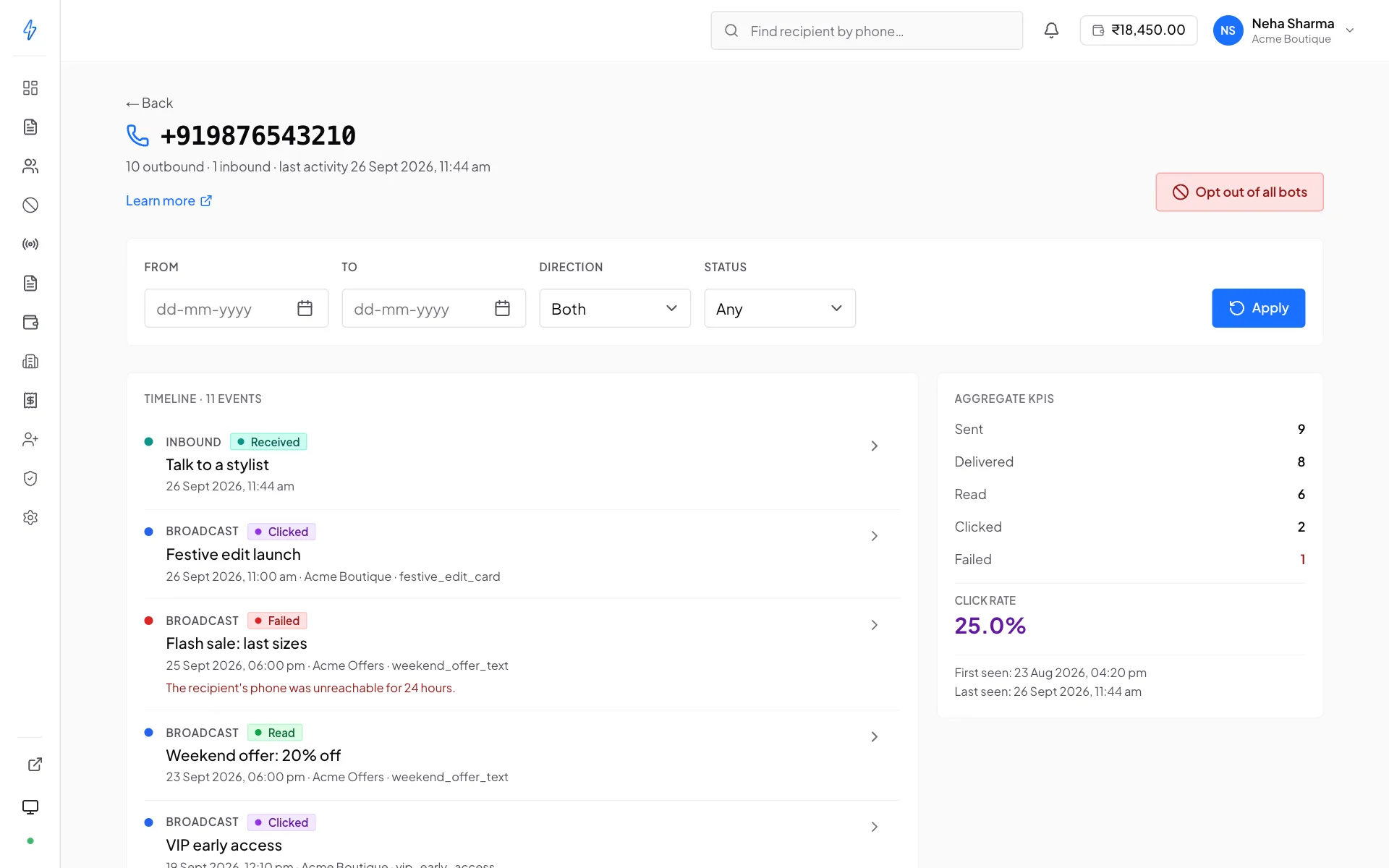
At the top, how many messages went out and came in, and when the number was last active. A number that opted out shows an Opted out tag. For one that has not, owners and operators see Opt out of all bots. Beside the timeline, Aggregate KPIs counts how many messages you sent it, and how many were delivered, read, clicked and failed, with the click rate.
The timeline lists every message, newest first. Each entry shows:
Filters
A number you message often will have a long timeline, so the page filters by the following. Set them, then press Apply.
- Date range, from and to
- Direction, messages you sent, replies, or both
- Status, failures only, for instance
If a filtered view is empty but the number clearly has traffic, the page says so explicitly rather than looking like the number has no history.
What it is for
- “I never got your message”
Find the send. Delivered means it reached their device, at which point the conversation is about where in their inbox it went, not whether it arrived. Failed carries a reason.
- “Stop messaging me”
The opt-out state is on this page. If they are not suppressed, add them to the opt-out list now.
- “I already replied”
Replies and button taps appear in the timeline, so you can see exactly what they sent and when.
- Checking a test send landed
Look up your own test number after sending to confirm delivery, and to see what the recipient view recorded.
What team members see
Operators and viewers see only messages sent from bots they have been granted. An owner sees everything on the account.
So two colleagues can legitimately see different histories for the same number. If someone reports a gap, check their bot scope under Team before assuming data is missing.
Exporting
The timeline is a read view, not an export. For anything you need in a spreadsheet, a full delivery report, a period summary, use Reports, which exports CSV and XLSX.