
Broadcasts
A broadcast is one template sent to one list, now or later. This is where messages actually go out and where the money is spent.
Go to Broadcasts. Operators and owners can create and control them; viewers can watch.
Before you can send
Four things must be true. The composer tells you which is missing:
An active bot registered for promotional traffic
Still in review means still blocked. See Apply for a bot.
The bot must also be registered as Promotional. A bot registered Transactional or OTP does not appear in the picker at all, see What your bot is registered to send.
An approved template
Only approved templates appear in the picker. See Templates.
A contact list
With at least one number the send goes to. See Contact list and Who gets this send below, and Contact lists.
Enough wallet balance
Prepaid accounts need enough to cover the send. See Wallet and billing.
Some of your bots may be hidden from the picker
Only bots registered Promotional can run a broadcast. Bots that send one message at a time, like OTPs, are hidden, and a short line under the picker says how many. See Name and bot. Those bots are not broken. They send one message at a time through the send-message API instead.
Creating one
New broadcast walks through it in three steps: Setup, Message and Audience & send.
Name and bot
Name it for your own benefit, diwali-day1-lapsed beats broadcast 7 when
you are reading a report next quarter. Then pick the bot to send from. If
you run several, check this: it decides the identity recipients see, the price
per message and the send rate.
Send from bot lists only the bots that can broadcast. Bots that can only send one message at a time, like OTPs, are hidden. When some are hidden, a short line under the picker says so, for example 1 bot is hidden: they send one message at a time, like OTPs.
- Press Show names to see which bots are hidden. Hide names folds the list away again.
- Press Why? next to the names to read what your bot is registered to send.
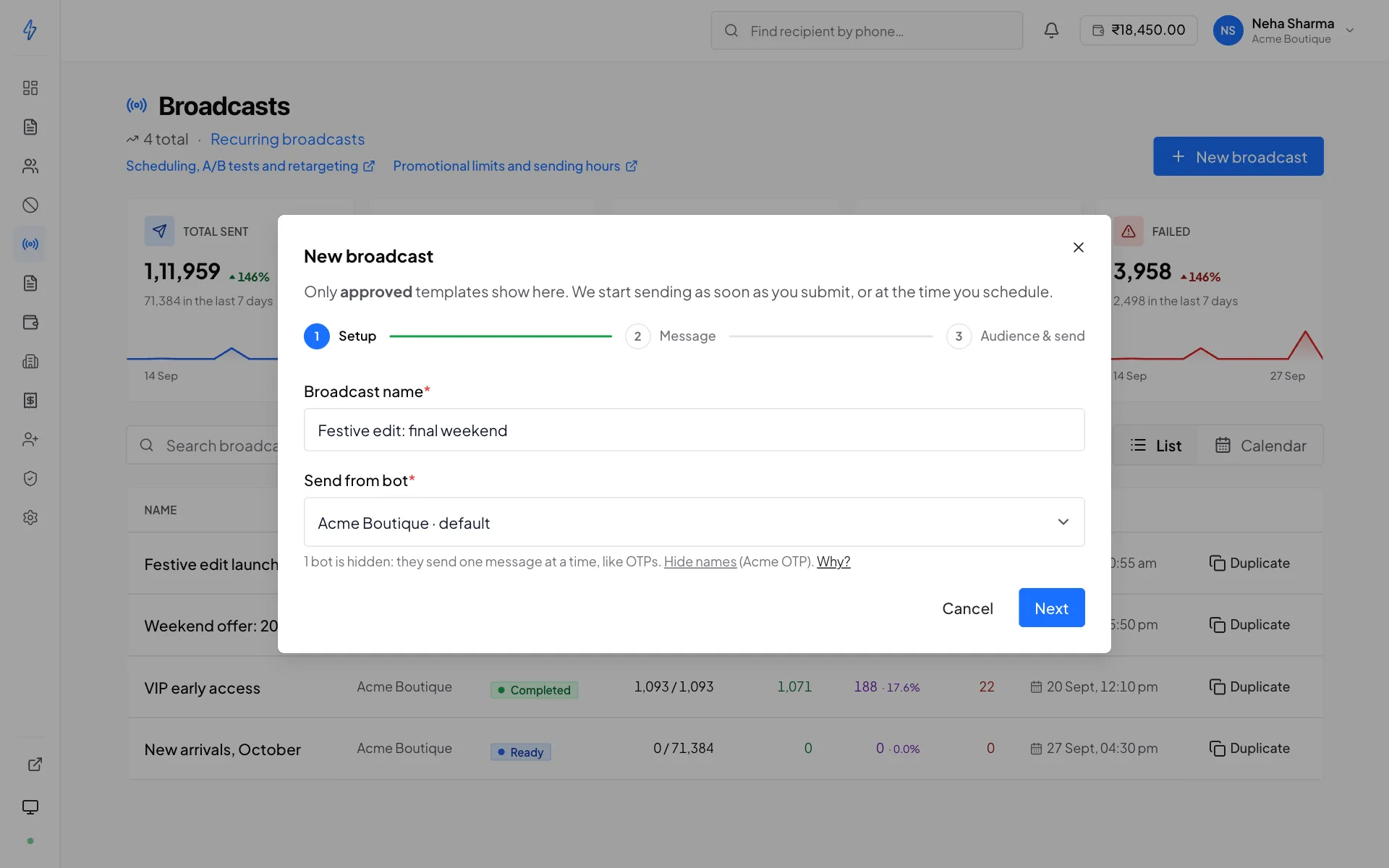
If none of your bots can broadcast, the composer says None of your bots can run broadcasts instead, names them, and links to apply for a Promotional bot.
Template
Only approved templates for the selected bot are offered. If the one you want is missing, its status is not approved, check the Templates page.
A/B test (optional)
Turn on A/B test to split the list between two templates and compare.
- Variant A and Variant B, two approved templates
- Split ratio, the percentage receiving A; the rest get B
Members are assigned to variants at send time, and the broadcast report breaks delivery, read and click rates down per variant.
An A/B test can't use a template with variables yet. Pick two templates
without {{1}}-style variables.
Change one thing at a time
If A and B differ in image, headline and button text, a difference in click rate tells you nothing about which change caused it. Vary one element per test.
Contact list
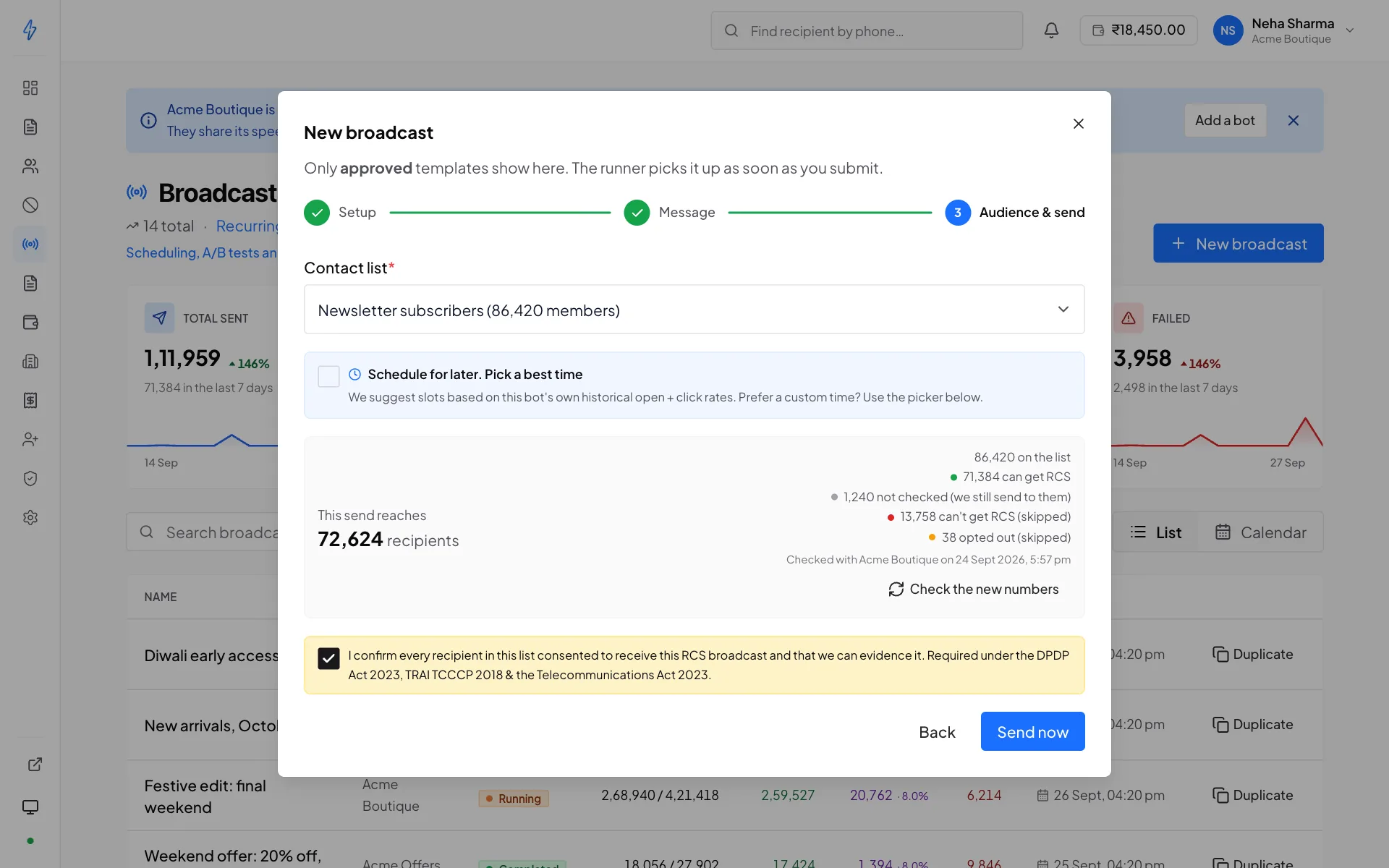
Pick the audience. The composer counts who this send reaches from the bot you picked and shows This send reaches N recipients, with the breakdown.
Who gets this send
After you pick the list, Send to offers three choices. Each one shows how many numbers it sends to:
- Opted-out numbers are never sent, whatever you pick. See opt-out.
- Can get RCS is picked to start with. Picking another list starts on Can get RCS again.
- A choice that sends to nobody is greyed out.
- A check is optional. When the list has not been checked, no choice shows. The composer says This list has not been checked, so the send goes to all numbers on it., and the send goes to every number on the list that has not opted out. To check first, press Check these numbers. See number checks.
- Check again, under the choices, checks again only the numbers that cannot get RCS and the numbers not checked yet. Numbers that can get RCS keep their answer.
- Duplicate copies the choice of the broadcast you copy.
With Can get RCS, the breakdown shows:
- N on the list
- N can get RCS, from the list's check
- N not checked (we still send to them)
- N can't get RCS (skipped)
- N opted out (skipped), see opt-out
- N skipped: not on RCS with this bot in the last 30 days, shown only when there are some. See Numbers not on RCS are skipped for 30 days
With Cannot get RCS it shows N cannot get RCS (we send to them), N can get RCS or are not checked (not in this choice) and the opted-out numbers. With All numbers it shows N on the list and N opted out (skipped).
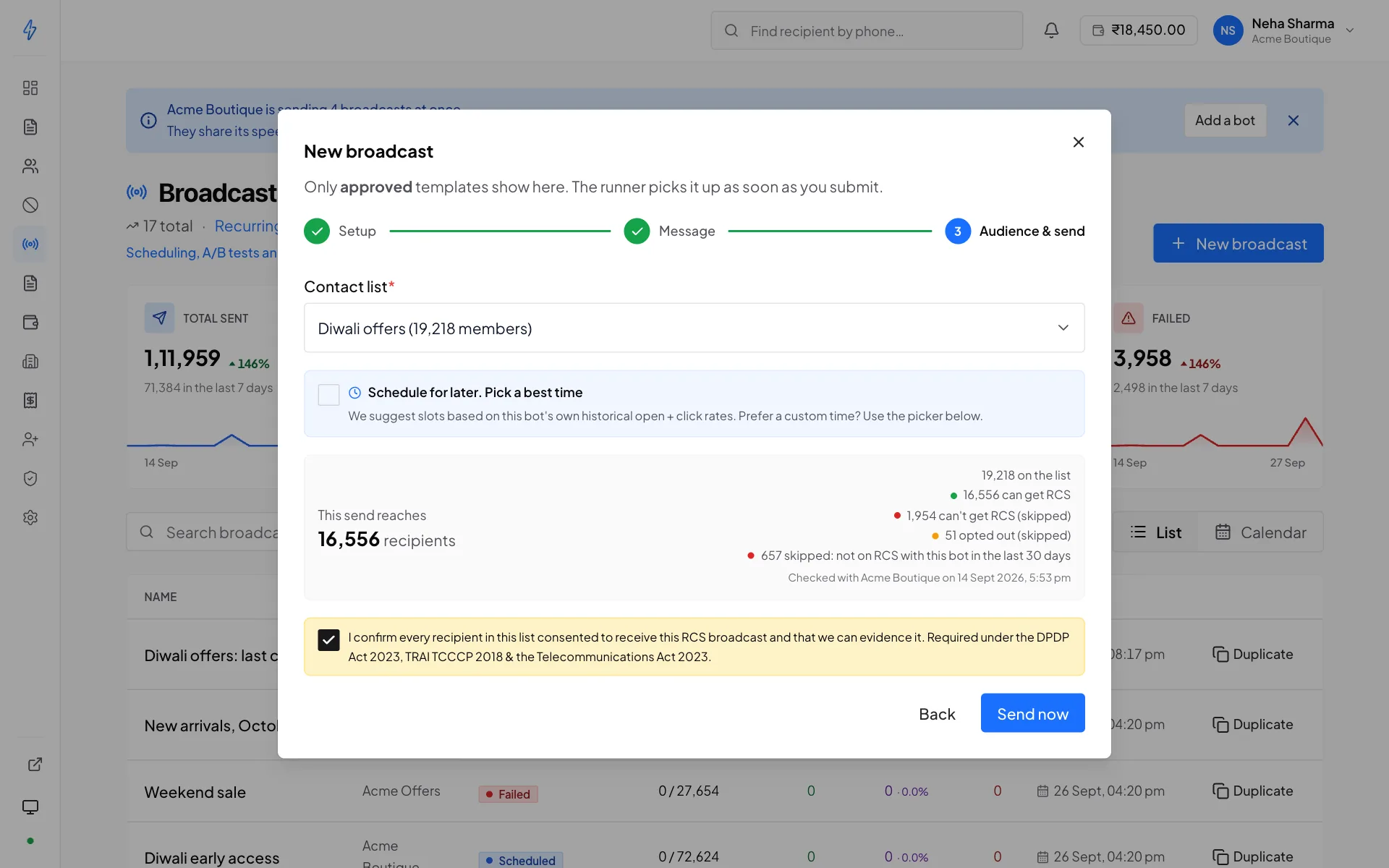
A check's answers count for sends from every one of your bots, not only the bot that checked. Skipped numbers are not messaged and not charged. See who a broadcast sends to.
With All numbers, and on a list that has not been checked, numbers that cannot get RCS fail when sent and are not charged.
Under the list picker the composer also tells you:
While a check runs, and after one fails or stops, the answers from the check before it still count. So Can get RCS still skips the numbers that check said cannot get RCS.
With any bot, when the choice you picked sends to nobody, the composer shows This send would reach nobody, keeps the send button off, and says why:
- The list has no numbers yet. Press Open the list to add some, or pick another list.
- Everyone on the list has opted out. Pick another list.
- None of the numbers can get RCS (with Can get RCS picked). The list's check, made with any of your bots, found that no number on it can get RCS. Press Check again to check again the numbers that cannot get RCS, or pick Cannot get RCS or All numbers. Check again shows when the bot you picked supports number checks.
- No number is marked as cannot get RCS (with Cannot get RCS picked). Pick Can get RCS or All numbers.
- They were not on RCS with this bot in the last 30 days. Every number left failed as not on RCS in an earlier broadcast from this bot. Pick another list or another bot, or pick All numbers to send to them anyway.
- When there is more than one reason, the composer gives the count for each, for example None of the 50 numbers on this list can get this message: 35 can't get RCS, 12 were not on RCS with this bot in the last 30 days and 3 opted out.
The same rule, for the choice you picked, is checked again when the send starts, so a send that reaches nobody is refused before anything is sent or charged. If the count cannot load, the composer shows Up to N recipients; the send still follows the choice you picked and never goes to opted-out numbers.
Variable mapping
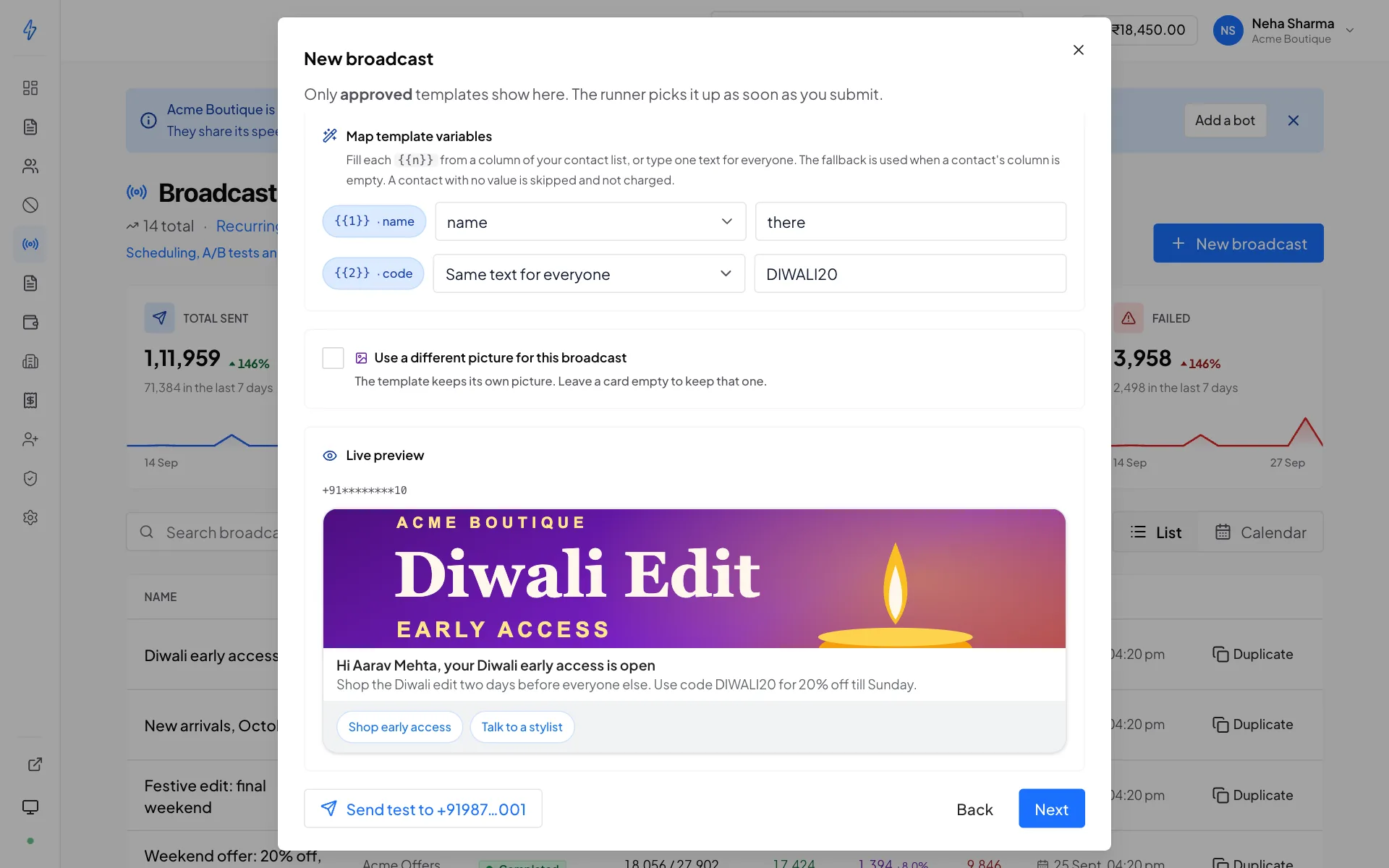
If the template has variables, Map template variables shows one row for
every {{n}} in it, with the name you gave it when building the template.
The rows show once a contact list is picked on the last step, so pick the
list, then press Message at the top to come back to them.
For each row pick where the value comes from:
- A column of the contact list:
nameandphoneare always there, plus every column from your CSV. The text box next to it is the fallback, used when a contact's column is empty. - Same text for everyone: type the text once.
For example, {{1}} from name with fallback there, {{2}} from
order_id, and {{3}} as the same text DIWALI20 for everyone.
Every variable needs a column or a text. A broadcast with a variable left
empty is refused with "Fill every template variable: {{2}} has no column or
fallback."
A contact that still has no value for a variable (empty column, no fallback) is
skipped: that message is marked failed with the reason, for example
No value for {{2}} in the message text, and is not charged. The same applies
when a value pushes a field over its limit, such as a card title over 200
characters.
The preview updates with a real row from the list so you can see what a recipient will actually get.
Read the preview with a real row
This is the moment to catch a mapping that puts the order ID where the first name goes. The preview is showing you an actual member of the list, not a placeholder.
When to send
- Send now, starts immediately
- Schedule, pick a date and time
There is also a best time suggestion, derived from when your own recipients have historically opened and clicked. It is a suggestion, not a rule.
Consent
You confirm that everyone on the list consented to receive messages from you. This is not a formality. It is the representation the carrier relies on when it approved your sender.
Two ways to see the list
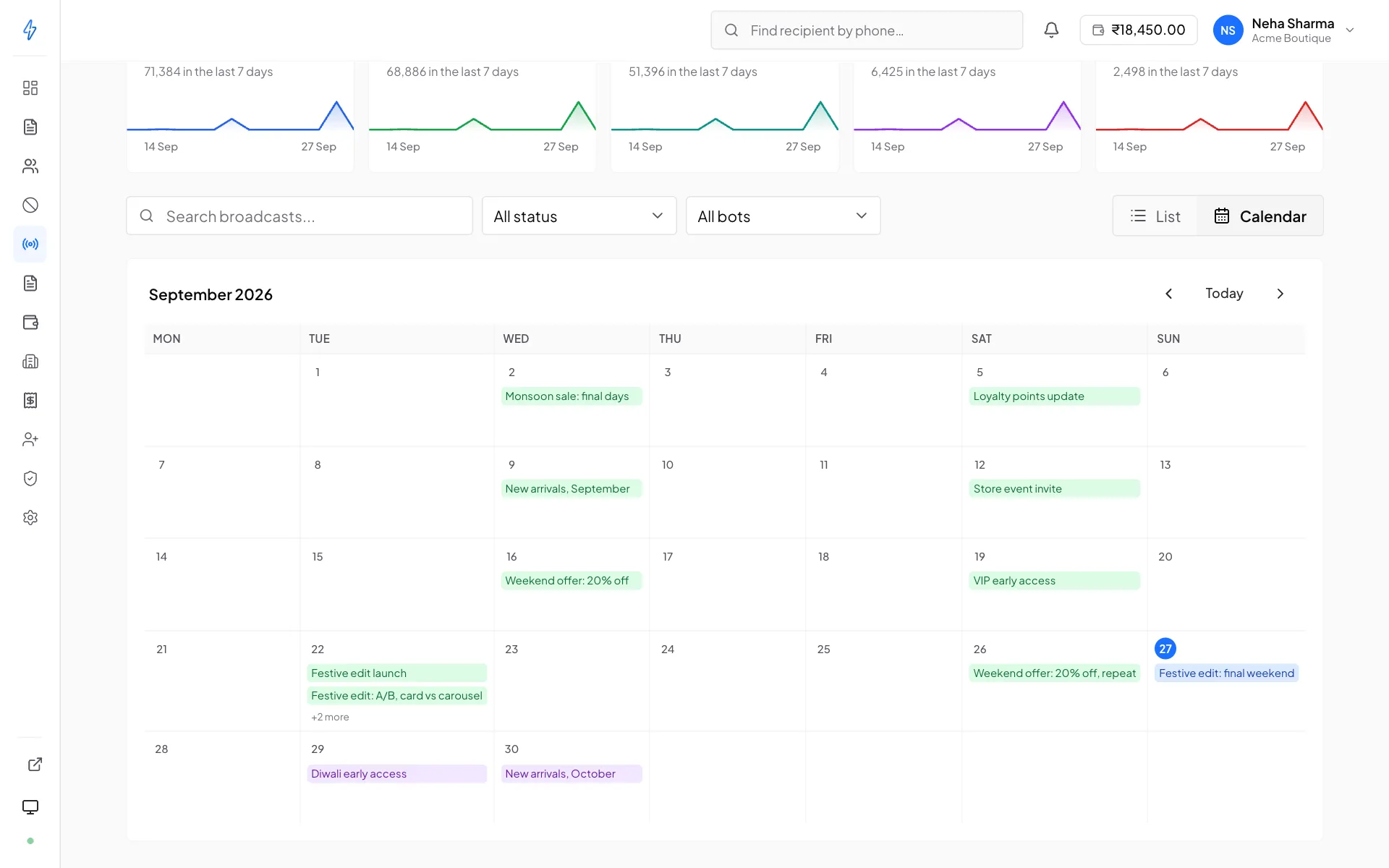
The toolbar has a List / Calendar switch.
List is the default and answers "what have I sent". It is newest first: the broadcast you created last is at the top. It shows 50 at a time, and Next and Previous keep the same order. Calendar lays the same broadcasts out on a month, which answers a different question: what is going out, and when. A table sorted by date makes two sends a fortnight apart look adjacent, and hides that next Tuesday already has four broadcasts on it.
A broadcast sits on the day it was scheduled for, or the day it was created if it was sent immediately. Click one to open its report. A day showing more than two says "+N more" rather than growing tall enough to push the rest of the month off screen.
The switch is hidden on a phone, where seven columns leave about 50px per day.
Duplicating one
Every row has a Duplicate button. It copies the bot, the template, the contact list, who it sends to (Send to) and any A/B settings into a new broadcast, which is most of the work of repeating last month's campaign.
It deliberately does not copy the schedule or the consent tick. Re-sending is a fresh decision about when it goes and who consented to receive it, and inheriting last month's send time would be the panel deciding that for you.
Duplicate opens the composer rather than creating anything, so nothing is sent until you review it and press the button yourself.
Watching a broadcast
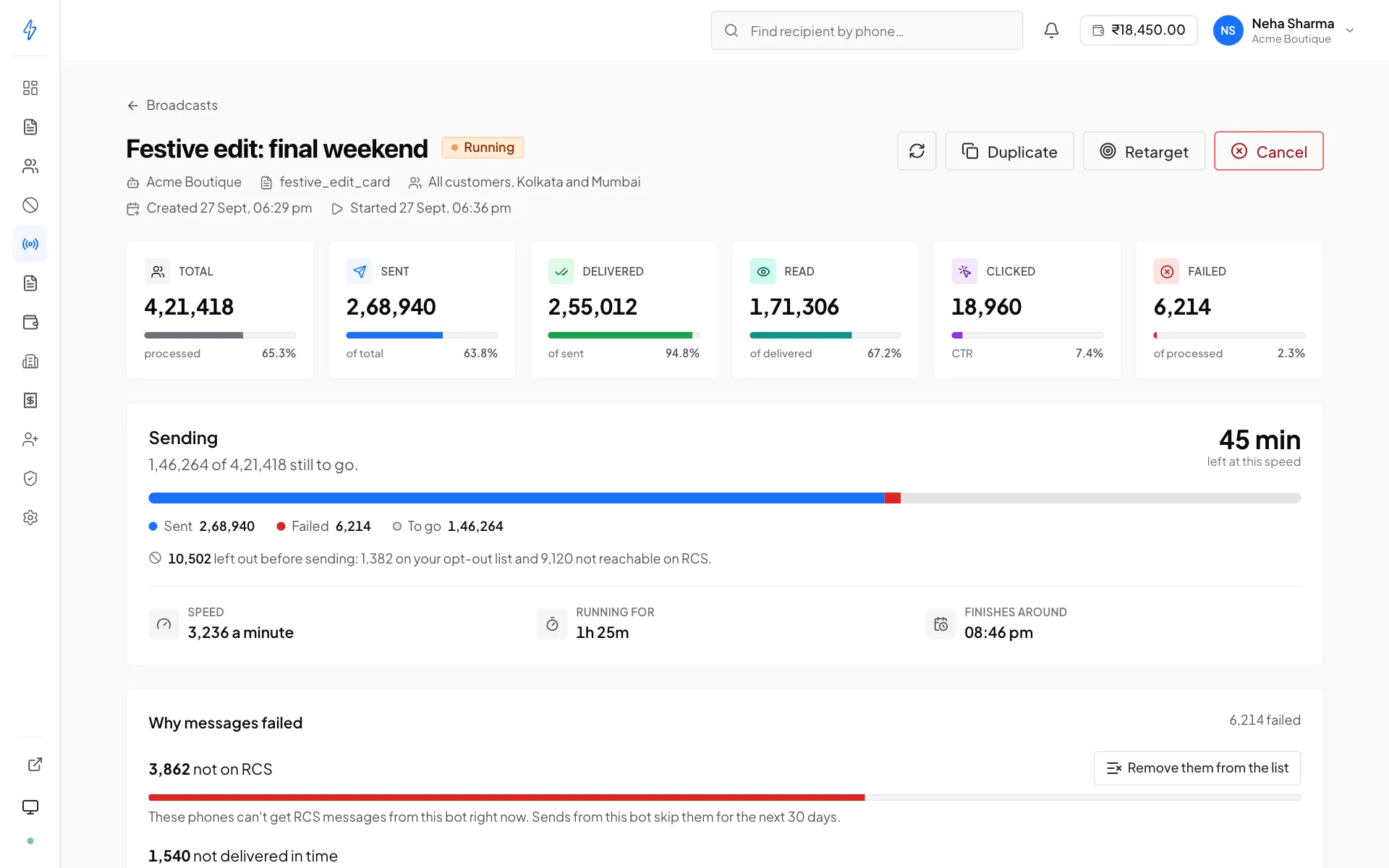
Open any broadcast to see it live. With the sidebar's connection dot green, the counters update in real time without a refresh.
The Recipients tab (the targets view) lists every recipient with their individual outcome, and failures carry a specific reason rather than a generic error. That view is where you find out that 400 numbers were unreachable, not that "some failed".
Numbers skipped before sending are not in the counters. The page says how many were left out before sending and why: on your opt-out list, not reachable on RCS, or not on RCS with this bot in the last 30 days. Numbers outside the choice you picked (for example the numbers that can get RCS, with Cannot get RCS) are not counted there. The Details tab shows the choice under Send to.
Finding recipients
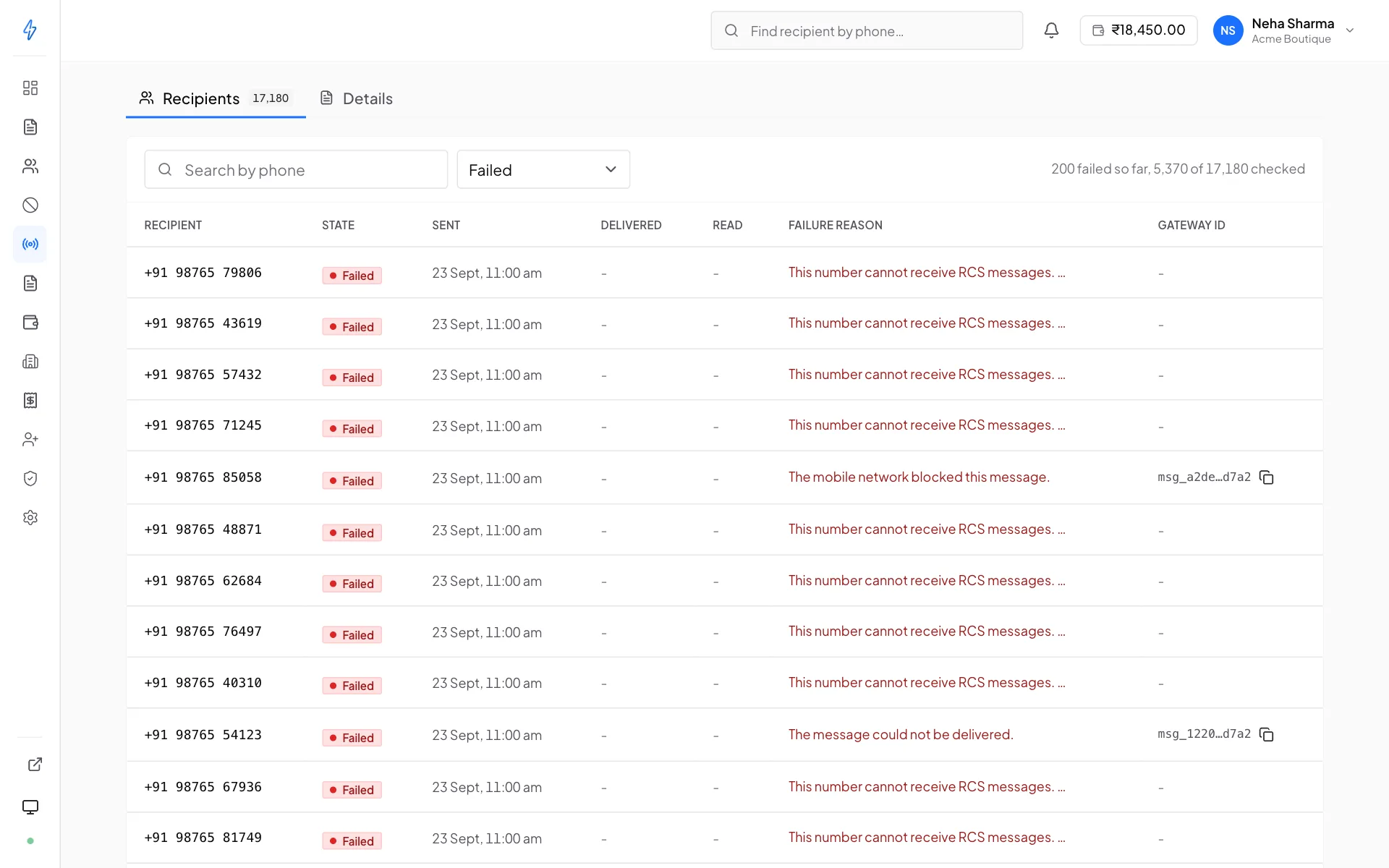
On the Recipients tab, Search by phone and the state filter look through the whole broadcast, not only the rows on screen.
- Search by phone takes any part of a number, for example
98765. A full Indian mobile number, written any way such as9876543210or+91 98765 43210, finds that one recipient at once. - The state filter offers Pending, Sent, Delivered, Read, Clicked, Failed and Expired. Clicked finds everyone who tapped a button, whatever the message's last state.
- On a big broadcast the search works through it in parts and says how far it got, for example Searching… 1,00,000 of 5,00,000 checked, 12 found. When a part has no match yet, No matches yet offers Keep searching.
- When a full number is not in this broadcast, Look up this number in every broadcast opens its recipient history.
Numbers left out before sending never get a row, so they are not in the search.
Why messages failed
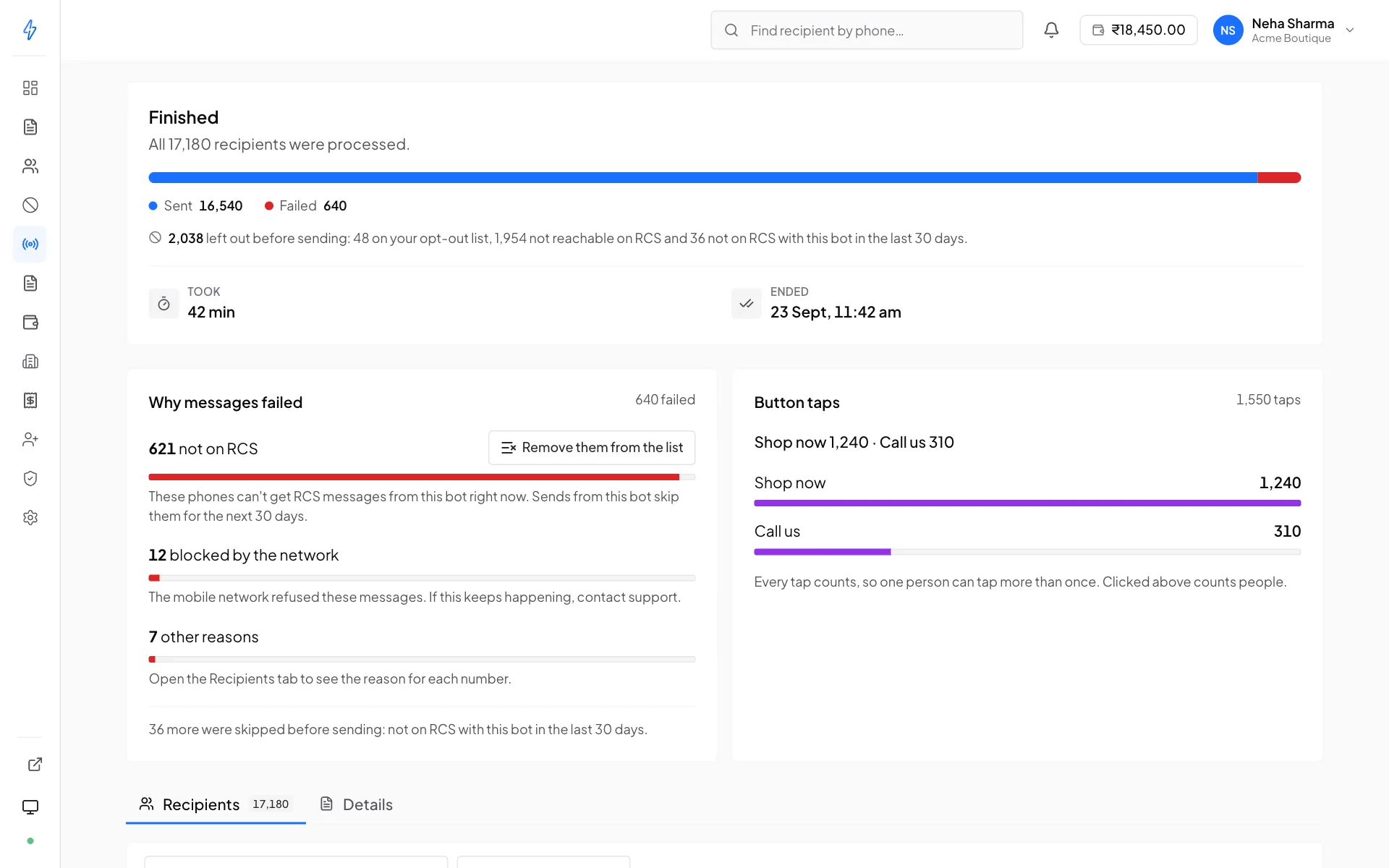
When a broadcast has failures, the Why messages failed card groups them by reason in plain words, with the count, a bar for its share of the failures and what to do. For example 621 not on RCS and 12 blocked by the network. The biggest reason comes first, and other reasons is always last. The card updates while the broadcast runs.
Under the reasons, the card can also say:
- N more were skipped before sending: not on RCS with this bot in the last 30 days. Those numbers were never sent, so they are not in the failed count.
- Counted from part of the recipients. Refresh to count again. A very large broadcast sent before this card existed is counted by reading its recipients, and the count ran out of time. Refresh the page to count again.
Remove them from the list
On the not on RCS row, Remove them from the list deletes those numbers from the contact list this broadcast used.
Press Remove them from the list
The panel asks Remove these numbers from the list? and names the list.
Press Remove numbers
A big broadcast is worked through in parts, and the button counts the numbers removed so far. When it is done you see Removed N numbers from the list, and the button reads Removed.
- Only that list changes. Your other lists keep the numbers.
- You do not have to remove them for them to be skipped: sends from this bot already skip them for 30 days, from any list. Remove them when you want the list itself clean, for example before you use it with another bot.
- Owners and operators can remove numbers. Viewers cannot.
- A removed number is gone from the list. To bring it back, add it again.
The button does not show when:
- Nothing from this broadcast was delivered, and 10 or more failed as not on RCS. The card then says Nothing from this broadcast was delivered, so the bot may not be live yet. Contact support before removing numbers. A bot that is not live yet makes good numbers fail as not on RCS, so removing them would lose real contacts.
- The list this broadcast used was deleted. The card says so.
Button taps
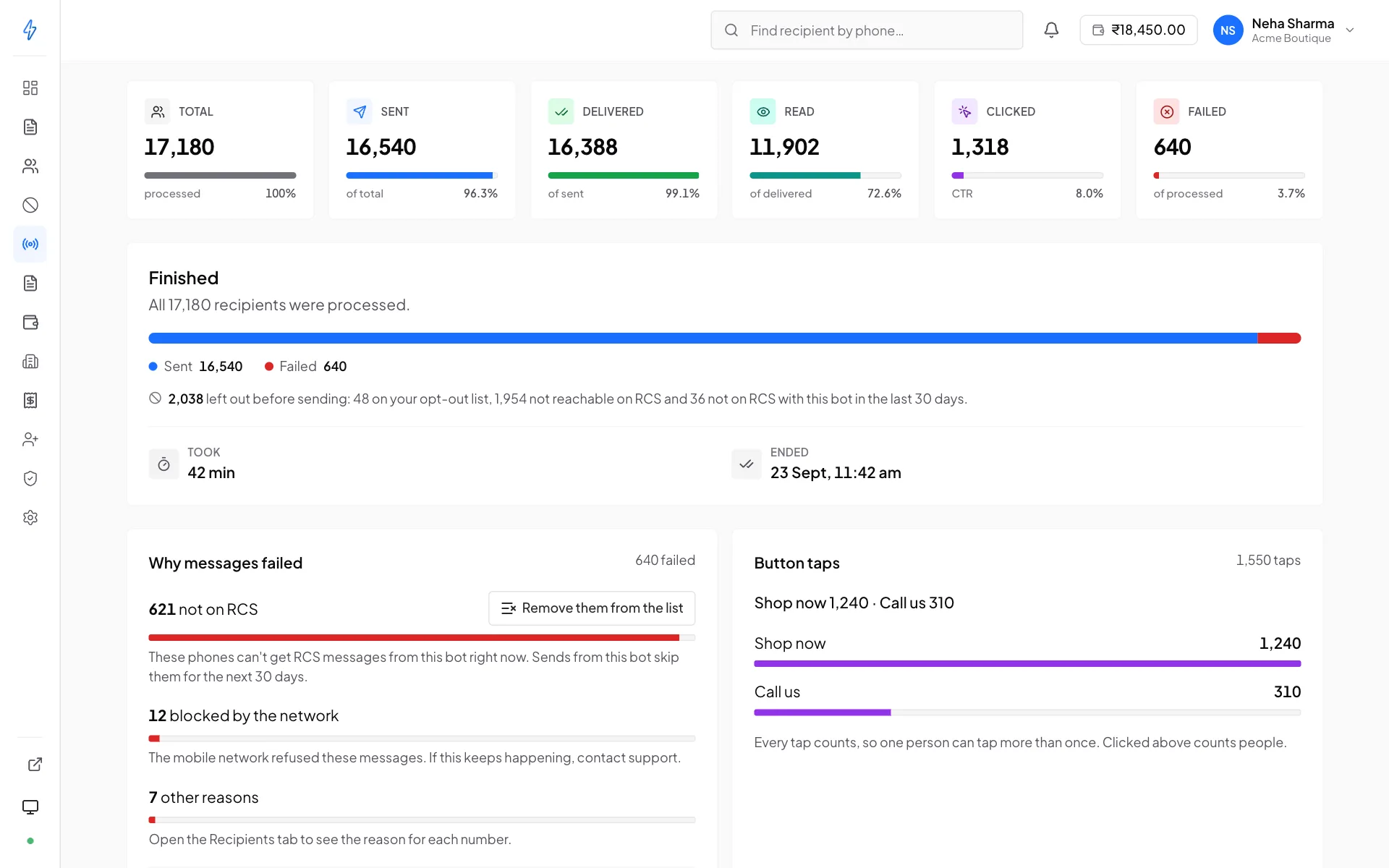
Once people tap buttons in a broadcast, the Button taps card shows how many times each button was tapped, for example Shop now 1,240 · Call us 310, with a bar for each button. The 20 most tapped buttons are named, and the rest are added up as Other buttons.
Every tap counts, so one person who taps twice counts twice. Clicked at the top of the page counts people, once each, and the click rate (CTR) comes from Clicked. So the taps total can be higher than Clicked.
A button shows by its label. A tap that comes back without a label shows the reply value you gave the button, and (no label) when there is neither.
Taps on single messages sent through the API are not counted here. A broadcast sent before this card existed has no count per button.
Statuses
Numbers not on RCS are skipped for 30 days
When a message from a bot fails because the phone is not on RCS, that bot skips the number in your later broadcasts for 30 days, from any list. The number is not messaged and not charged.
- Only that bot skips it. Your other bots still send to the number. A bot can be live on some mobile networks and not on others, so one bot's failure says nothing about another.
- Only after the broadcast delivered something. A failure is remembered only once the broadcast it happened on has delivered at least one message. Failures that come in before that are not remembered: when nothing is delivered, the bot itself may not be live yet, so its failures are not held against the numbers.
- 30 days from the last failure. Another failure on the same bot starts the 30 days again. After that the number is sent to again, because people turn RCS on.
- A newer check wins. When the list's number check, made after the failure, says Can get RCS, the number is sent to again. A check of a checked list does not check a Can get RCS number again, so to send to these numbers anyway, pick All numbers.
- Can get RCS only. Cannot get RCS and All numbers do not skip these numbers.
- Broadcasts only. Recurring runs follow it too. Single messages sent through the API and test sends are not skipped, and they do not add numbers to it.
You see the numbers twice: the composer counts them before you send (N skipped: not on RCS with this bot in the last 30 days), and the broadcast page lists them under left out before sending.
Controlling a running broadcast
- Send now on a scheduled broadcast skips the wait and starts immediately. It is refused once today's spend limit is reached.
- Cancel stops a running or scheduled broadcast
Cancel stops what is left, not what is gone
Messages already handed to the carrier will still be delivered. They are out of our hands. Cancel prevents the remainder from being sent. On a fast bot with a small list, that window can be seconds. There is no recall.
Retargeting
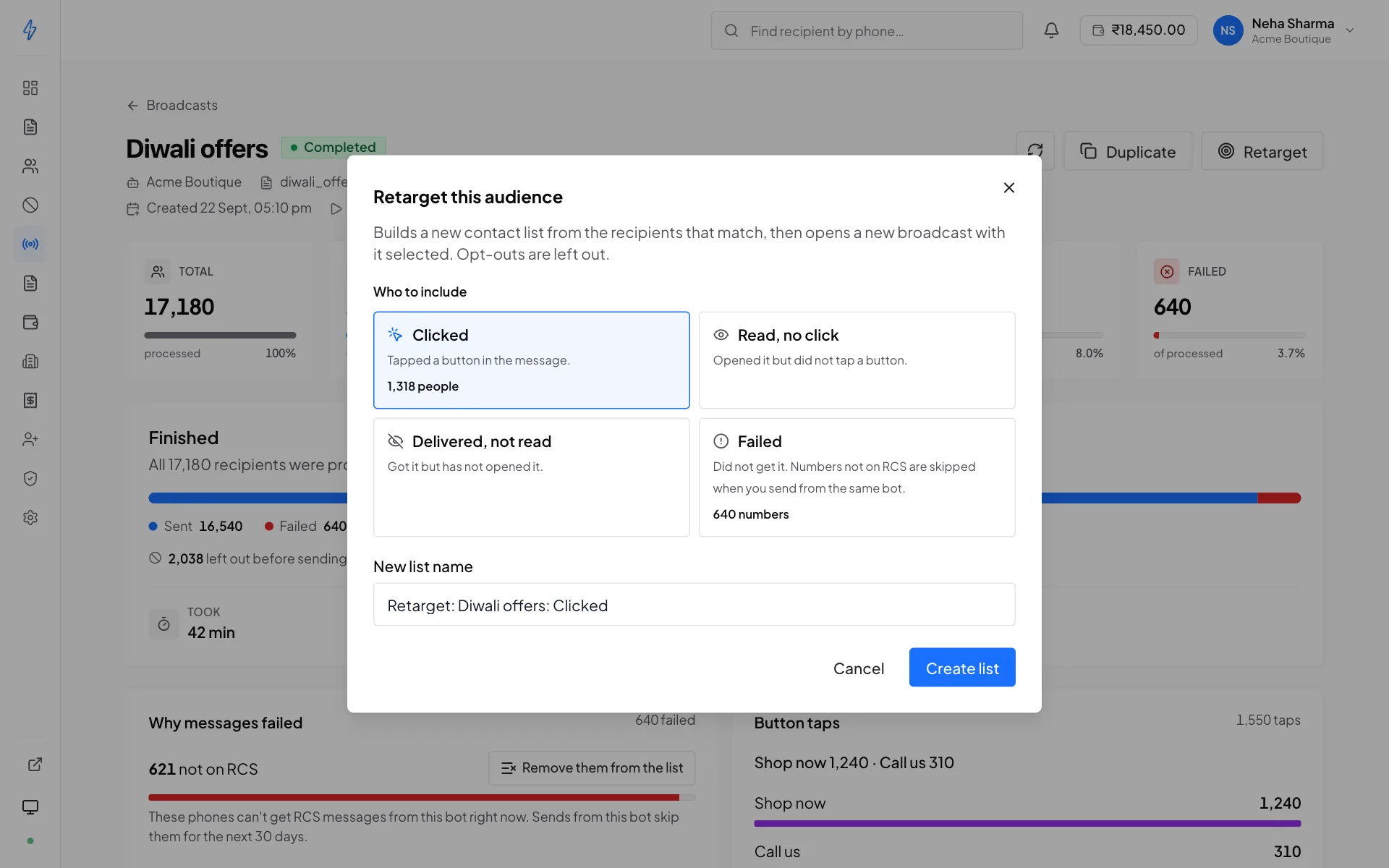
On a running or completed broadcast, Retarget builds a new contact list from part of who it went to, then opens New broadcast with that list picked. Under Who to include, pick one:
A preset nobody is in yet is greyed out and cannot be picked. The new list is named Retarget: broadcast name: preset, for example Retarget: Diwali offers: Clicked. Change it under New list name, then press Create list. People on your opt-out list are left out.
The result is an ordinary contact list you can broadcast to with a different template: a reminder for the people who did not read, a stronger call to action for the readers who did not click.
Retarget on behaviour, not on failure
Resending to a list of failures usually fails again for the same reason. Read Why messages failed first. Failed is worth retargeting when the reason was wallet ran out or network busy. Numbers not on RCS are skipped anyway when you send from the same bot with Can get RCS, and a number check tells you about the rest.
When the daily spend limit is reached
The account owner can set a daily spend limit. Once today's spend reaches it:
- Creating a broadcast that sends today, Start and Send now are refused with Today's spend limit of ₹5,000 is reached. New broadcasts can start again after midnight, or the account owner can raise the limit in Settings.
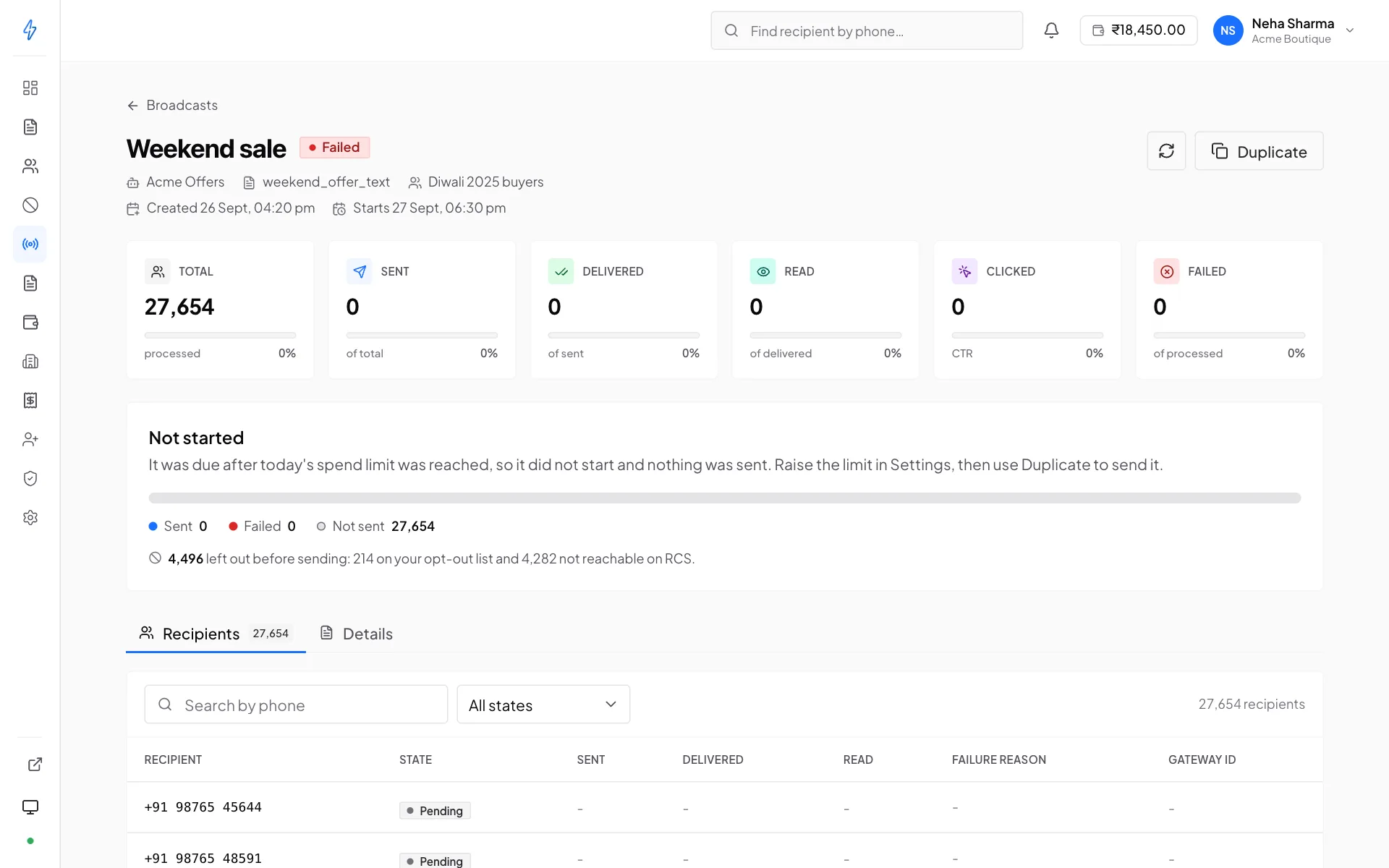
- A scheduled broadcast that falls due that day does not start. Its page says Not started, and nothing is sent or charged. Raise the limit, then use Duplicate to send it.
- A broadcast scheduled for a later day can still be created.
- A broadcast that is already sending is not stopped. That includes one paused overnight by the promotional time window: it carries on in the morning.
The day runs midnight to midnight, India time.
Recurring sends
For anything on a repeating schedule, a weekly digest, a monthly statement notice, use a recurring broadcast rather than creating one by hand each time. See Recurring broadcasts.
Each run sends to the choice saved with the schedule (Can get RCS, Cannot get RCS or All numbers) and counts the list again when it goes out. A scheduled run with nobody to send to for its choice (an empty list, everyone opted out, no number that can get RCS, or no number marked as cannot get RCS) is skipped, and the schedule tries again at its next time. A run that falls due after today's spend limit was reached is skipped the same way, or, if it was already set up, it says Not started and sends nothing.
What gets charged
You pay for each message the network accepts, at the bot's per-message price. When the broadcast starts, the numbers it sends to are held: the count for the choice you picked, or all numbers on the list that have not opted out while a check on the list is still running. Each accepted message takes its share of the hold, and what was not used returns when the broadcast ends. Not charged:
- Numbers dropped by the opt-out filter
- Messages the network refused when they were sent
- Messages that failed after the network accepted them, including numbers that turn out not to be on RCS: charged when accepted, then refunded automatically, one wallet line a minute for the broadcast
- Numbers this bot found not on RCS in the last 30 days, skipped before sending with Can get RCS
- Numbers outside the choice you picked, which are never sent
- Contacts skipped because a template variable had no value
So a broadcast costs what the network accepted less what failed after that, never more than its target count. The broadcast page shows the counts. See Wallet and billing.
Test sends are charged too, at the same rate, as though each were a one-recipient broadcast. They are not part of any broadcast, so they do not appear in a broadcast's numbers, but they do count in the totals on your dashboard and in Reports, and they appear in your transaction history.