
Contact lists
A contact list is a named audience. Broadcasts send to one list, so this is where every campaign starts, and where you find out how much of your list is actually reachable.
Go to Contact lists. Operators and owners can create, import and delete; viewers can read.
Creating a list
New list, give it a name, and add members. Names are for you, diwali-2026
and lapsed-30-days will make sense later; list 3 will not.
Members can be added three ways:
- Typed or pasted, one number per line, for small or ad-hoc lists. See Pasting numbers
- CSV import, for anything real
- Materialised from another list, either the reachable subset of a list, or the retarget output of a broadcast
Importing a CSV
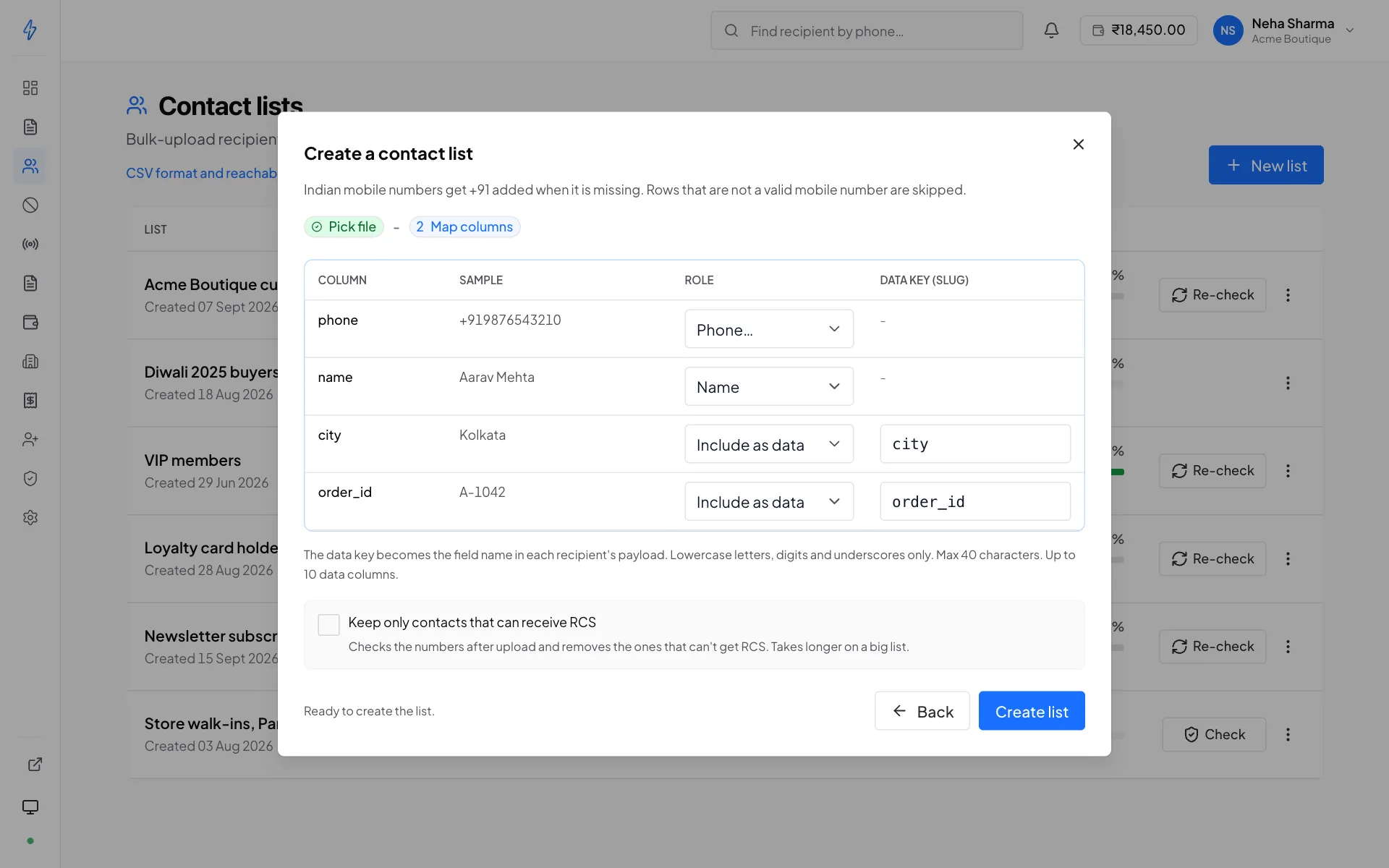
Prepare the file
One row per contact, with a header row. A phone column is required; everything else is optional and becomes available as template variables.
Check the phone numbers
Indian mobiles can be written as
9876543210,09876543210,919876543210or+919876543210; each is saved as+919876543210. Numbers from other countries need their+and country code. Spaces, dashes, dots, brackets, quotes and labels such asMob:are ignored, and a cell with several numbers (9876543210, 9123456789) adds each one, with the same name and columns.Upload and map the columns
The importer shows your headers and asks which is the phone number and which feed which template variables.
Review the result
The panel reports how many rows imported and how many were skipped, with reasons.
A minimal file:
phone,name,order_id
+919876543210,Asha,ORD-1042
+919812345678,Ravi,ORD-1043
Spreadsheets destroy phone numbers
Excel and other spreadsheet apps treat +919876543210 as a number, drop the +, and will happily render
it as 9.19877E+11. That short form has lost digits, so it cannot be read: the import counts
those numbers apart and tells you how many. Format the column as text before pasting, or
export from your source system directly to CSV without opening it.
Rows are skipped when the number is not a valid mobile number (for India, 10 digits starting 6 to 9), is a duplicate within the file, or is already on the list. Skipped rows do not stop the import, the rest still lands.
When number checks are available on your account, both upload dialogs can also verify the list on the way in and drop what cannot receive RCS. See cleaning the list as you upload.
Pasting numbers
For a short list you do not need a file. Both dialogs take pasted numbers:
- New list: name the list, then choose Paste numbers instead of Upload file.
- A list you already have: press Add numbers on its row, or Upload CSV inside the list, then choose Paste numbers.
Paste into the Numbers, one per line box. Copy them from a sheet, a chat or a note; the formats can be mixed:
9876543210
+91 98765 43211
919876543212
098765-43213
9876543214, Aarav Mehta- One number per line. Commas, semicolons and tabs also split numbers, so a row copied from a sheet works.
- With or without +91.
9876543210,09876543210,919876543210and+91 98765 43210are the same number, saved as+919876543210. Spaces, dashes, dots and brackets inside a number are fine. A number from another country needs its+and country code. - A name can follow the number after a comma:
9876543214, Aarav Mehta. - Lines with no number in them, such as a heading or a note, are skipped. Duplicates are removed.
Under the box the panel counts as you paste: N numbers ready, N not valid, will be skipped, N duplicates removed and N lines skipped (no number).
Then carry on as with a file. In New list, press Next: the Phone column (and Name, if you added names) is already mapped, so press Create list. When adding to a list, press Continue, then Import. The same rules as a CSV apply, and the result says how many were added and skipped.
A paste holds up to 50,000 numbers (49,999 when adding to a list you already have). For more, upload a file.
Uploading a big list
Use New list for a big file. It takes a .csv or .txt file of up to
200 MB, which is about 25 lakh contacts.
You do the same steps as for any list. A big file (over about 8 MB, or over 50,000 rows) is imported in the background, and the dialog shows you how far it got.
Pick the file
Go to Contact lists and press New list. Give the list a name, for example
acme-boutique-all-customers, and drop in the file. The preview shows the first rows and about how many rows the file has.Map the columns and press Create list
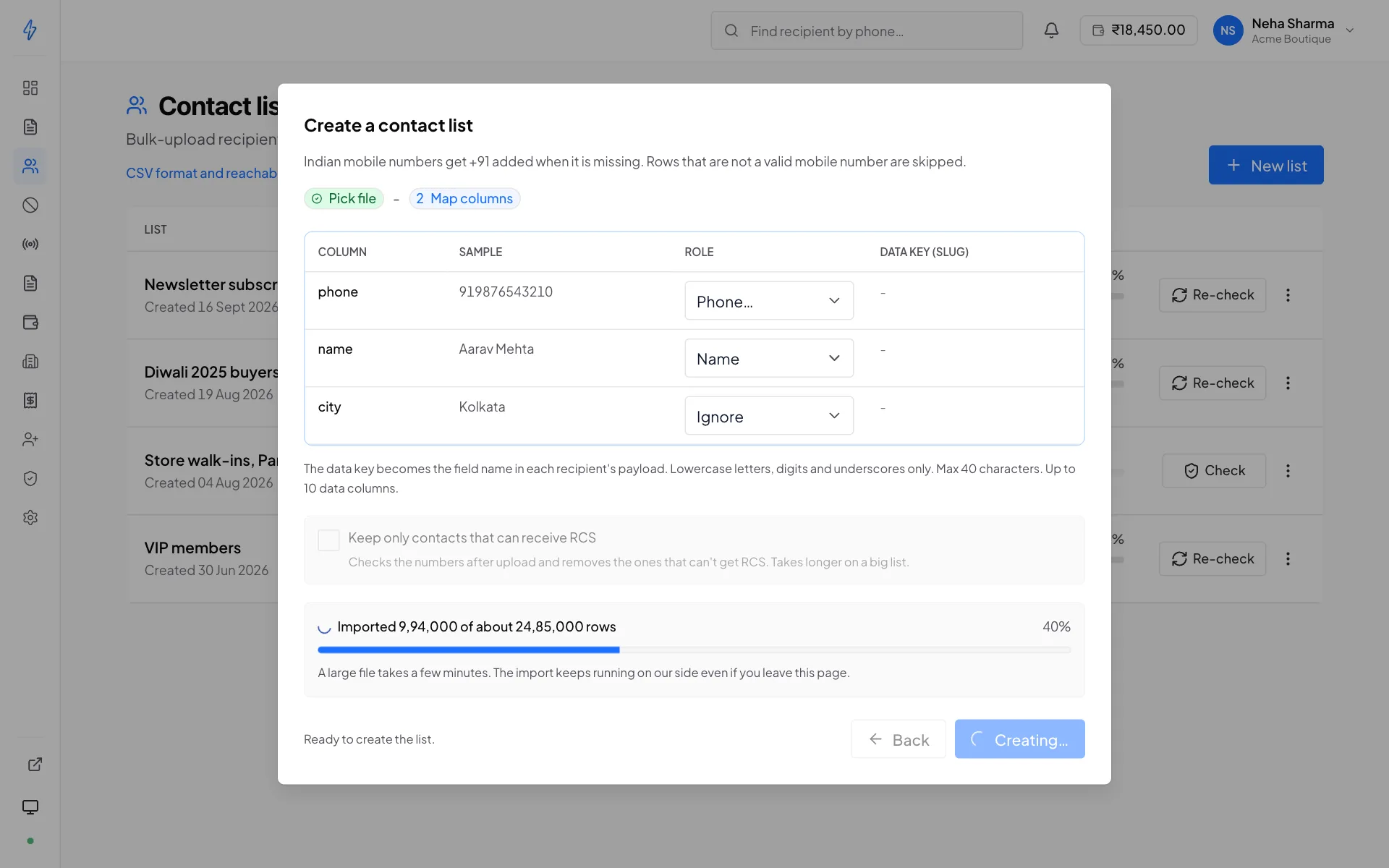
A big file is compressed automatically in your browser before it uploads. You do not need to zip it yourself. While the file uploads, the button reads Creating….
Watch the progress bar
The dialog shows Imported X of about Y rows and a percentage. A big file takes a few minutes. The import keeps running even if you leave the page, but the RCS check does not. See below.
Check the result
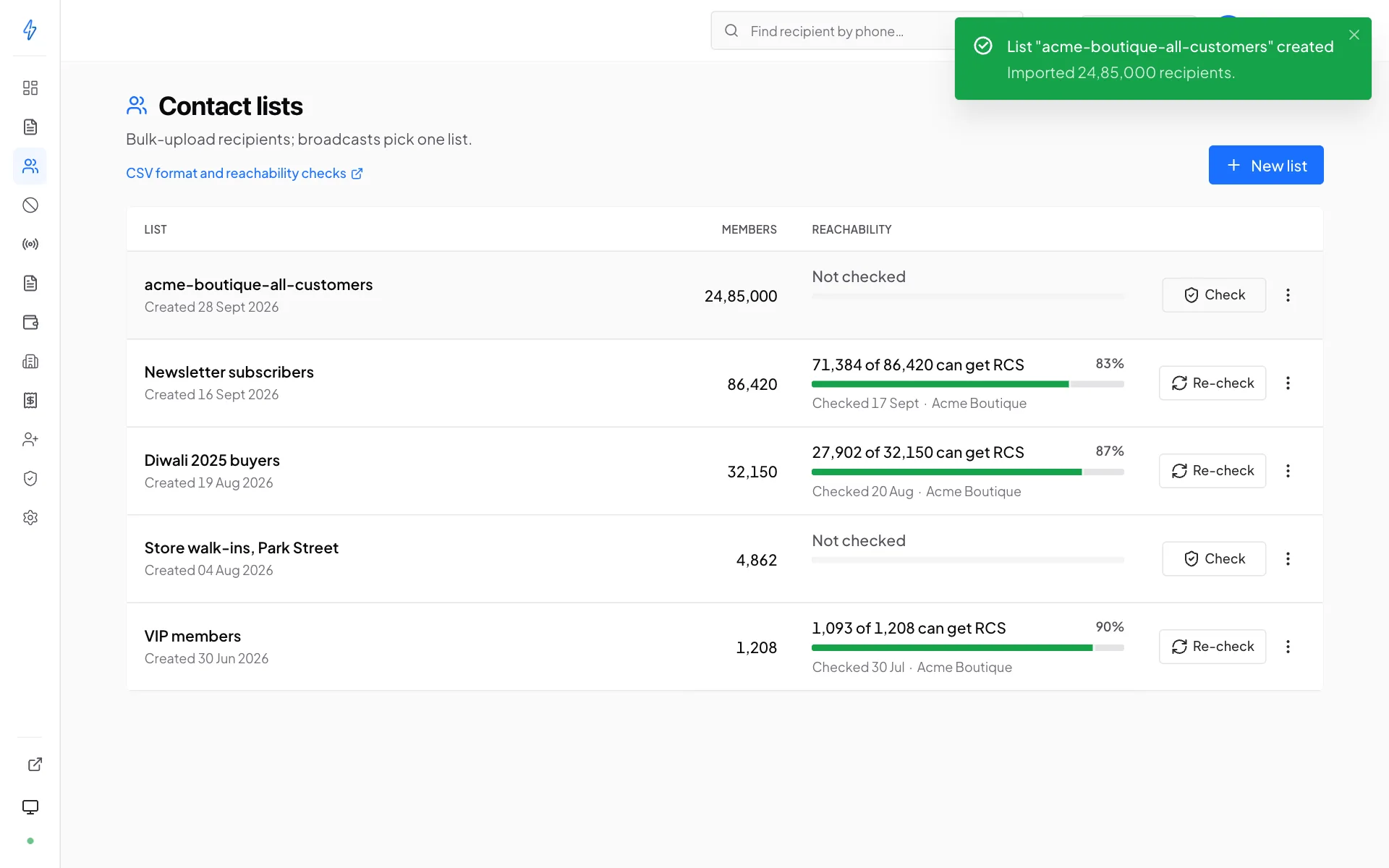
When the import finishes, the dialog closes and a message confirms the list was created, with the number of contacts imported. The new list is on the page with its count.
If you ticked Keep only contacts that can receive RCS, the dialog stays open a little longer. It shows a green Import complete card with the number added, the duplicates skipped and the rows that were not valid, then runs the reachability check.
Keep the dialog open for this step. The check, and the removal of numbers that cannot receive RCS, run only while the dialog is open. If you leave the page during the import, your contacts are still imported, but nothing is checked or removed. Open the list afterwards and run a reachability check yourself.
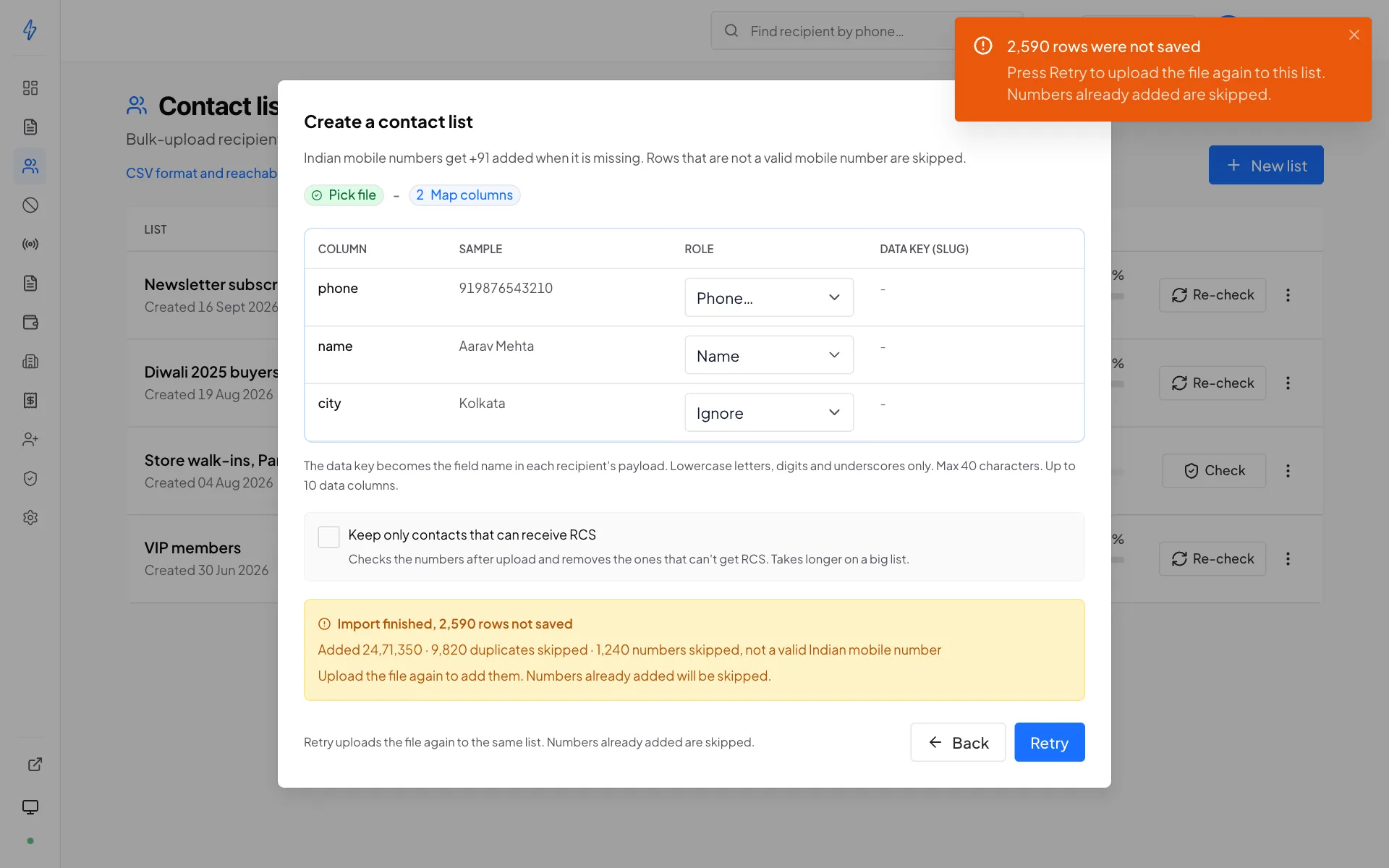
When an import stops or leaves rows out
The dialog stays open and shows a card that says what happened:
In both cases the Create list button changes to Retry. Press it to send the same file again to the same list. It does not make a second list, and numbers already on the list are skipped, so nobody is added twice.
If you close the dialog instead, the list stays, with the contacts added so far.
If the dialog says it lost contact with the import
This can happen when your internet drops while you wait. The import may still finish. Check the list's count after a few minutes before you retry.
Import CSV on an existing list has a smaller limit
Import CSV inside a list you already have still takes files up to 10 MB and 50,000 rows. For a bigger file, use New list.
Use a recent version of Chrome, Edge, Firefox or Safari. An older browser cannot compress the file, so it can only send files under 95 MB. If a file is still too large after compression, the panel asks you to split it into smaller files.
Check who can receive RCS
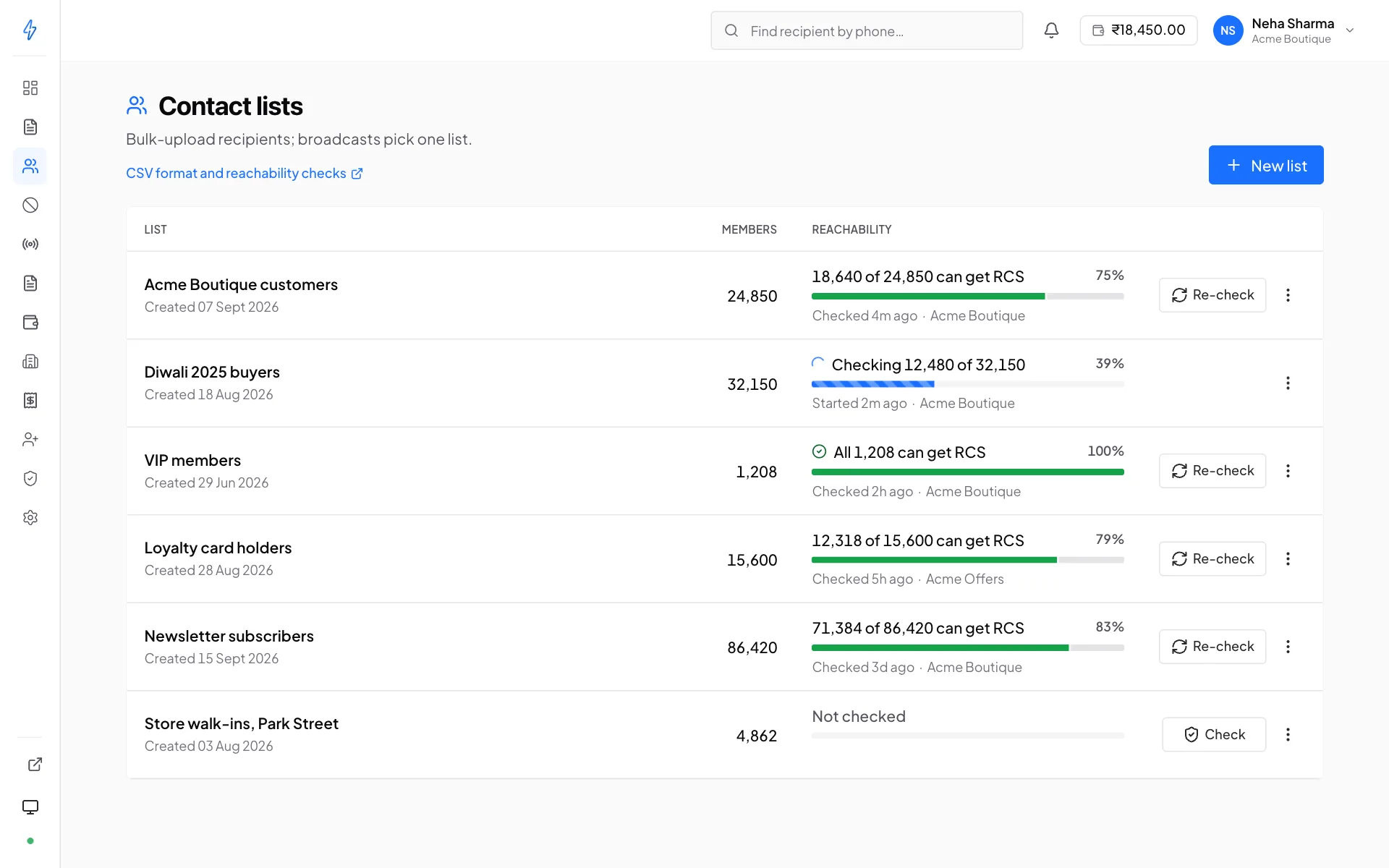
Not every number can receive an RCS message. Before spending a campaign on a list, you can check it. The panel asks the carrier, for each number, whether RCS can currently be delivered to it.
A check is optional, and needs a bot that supports it
You never have to check a list to send to it. A list that has not been checked goes to every number on it except people who opted out, and numbers that cannot get RCS fail and are not charged. Not every bot supports number checks. When your account has an active bot that does, checks run with your bots. When it has none, you can usually still check your lists from the panel: we run the check for you, and the results show with no bot name. The check buttons, the Reachability column and the reachable number tools show only when a check can run.
Start the check
On Contact lists, press Check on the list's row. Inside a list, press Check numbers.
Pick a bot
If more than one of your bots supports number checks, the panel asks which one runs the check. It lists only those bots. Pick one and press Start check. The answers count for broadcasts from all your bots. When we run the check for you, there is no bot to pick.
Let it run
The row shows Checking X of Y, then Saving X of Y and Almost done. Y is the numbers this check covers. A small list takes seconds. A list of 5,000 numbers or more is checked in the background by the mobile network and can take up to an hour. The check keeps going if you leave the page, and through our updates. You can send broadcasts to the list while it runs.
When it finishes, the list names the bot and the time, for example Checked with Acme Boutique on 26 Sep 2026, 4:05 pm. A check we ran for you shows only the time, for example Checked on 26 Sep 2026, 4:05 pm. Every number carries a tag:
Not checked is not the same as can't get RCS. A number nobody has tested is unknown, not dead, and nothing in the panel treats it as dead.
Numbers with no answer stay Not checked
The network answers for each number. A number it does not answer for within the check's time, or answers only with an error, stays Not checked and is still sent to. The list then says how many numbers were left unchecked. Run the check again later to cover them.
One check counts for all your bots
A check runs with one bot, and its answers count for broadcasts from every bot on your account, including bots that cannot check numbers.
Do this on any list you did not build this week
Reachability drifts. People change phones, switch carriers and turn features off. On a cold list this check is the difference between paying for a campaign and paying for a delivery-failure report.
Running a check uses the quota of your bot's provider, and only one check can run on a list at a time. When we run the check for you and checks are busy, the panel says Number checks are busy right now. Try again in a few minutes. Nothing starts; try again later.
Your account can check two lists of 5,000 numbers or more at the same time. A third one stops at once with Too many checks of big lists are running on your account. Nothing on that list changes. Check it again when one of the others finishes.
Your bot must be live first
A check asks the network through your bot. Until your bot is live on the network, the network cannot answer, and the check stops after the first few numbers with Your bot is not live on the network yet. Nothing is changed on your list. Check again after your bot goes live. A bot that is live on only some networks checks the numbers on those networks, and the rest stay Not checked.
A reachability check is not a guarantee
It is a point-in-time answer. Someone reachable this morning can turn RCS off this afternoon. Expect a small number of failures on any send, and read them in the broadcast's targets view.
Who a broadcast sends to
When you create a broadcast you pick who it sends to under Send to. See Who gets this send on the Broadcasts page.
Opted-out numbers are never sent, whatever you pick. A check's answers count for broadcasts from every bot on your account, not only the bot that checked. With Can get RCS, for each number:
So a list checked with one bot and sent from another skips the same numbers. This holds for a broadcast from a bot that does not support number checks too. The 30-day skip is different: it belongs to the bot that failed the number. See Numbers not on RCS are skipped for 30 days. A list that was never checked goes to every number that has not opted out, and numbers that cannot get RCS fail and are not charged. The broadcast composer shows the count for each choice before you send, and refuses a send that reaches nobody. See Contact list on the Broadcasts page.
A check made earlier with a bot that does not support number checks is not used anywhere. The list shows as Not checked, and its numbers are sent to.
While a check runs, and after one fails or stops part way, the answers from the check before it still count, together with the answers the new check has saved. A broadcast sent then uses those answers. A stopped check shows Resume and checks only the numbers it did not finish.
Checking again
- Re-check on the list's row, Check again inside the list, Retry after a check that failed, and Check again in the broadcast composer check again only the numbers that cannot get RCS and the numbers not checked yet, such as numbers added since. Numbers that can get RCS keep their answer and are not checked again. This is the same with any of your bots.
- The first check of a list checks every number.
- Resume, after a check that stopped part way, keeps the answers it saved and checks the rest.
- A check does not check a Can get RCS number again, so it cannot bring back a number a bot is skipping as not on RCS when its answer is Can get RCS. Pick All numbers in the composer to send to those numbers anyway.
Removing the numbers that can't get RCS
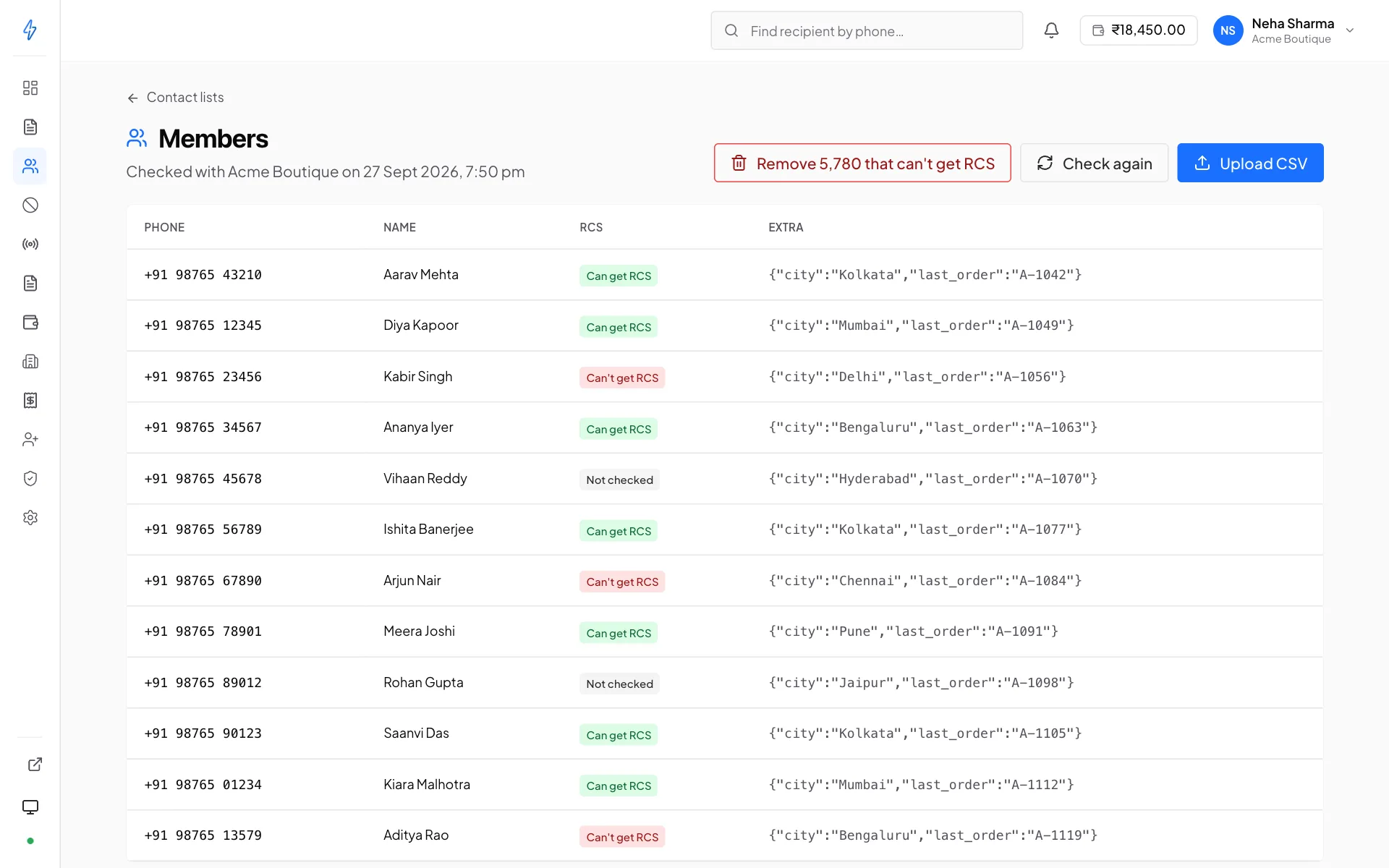
Inside a list, Remove N that can't get RCS deletes exactly the numbers the latest check found can't get RCS. It shows only when there is something to remove, and not while a check is running.
- Not checked numbers are never removed, so the action can never quietly delete numbers nobody has verified.
- Only a finished check counts. After a check that failed or stopped, the button stays hidden until a check finishes.
After a broadcast, its Why messages failed card can also take numbers off the list it used: Remove them from the list removes the numbers that failed as not on RCS. See Remove them from the list.
This edits the list you already use
Exporting the reachable ones or copying them into a new list both leave you re-pointing every broadcast at a new list id. Removing in place does not, which is usually what you actually wanted.
Downloading or copying the reachable numbers
From a list's menu on Contact lists:
- Download reachable numbers gives a CSV of the numbers that can get RCS, ready to import anywhere.
- New list from reachable makes a new list with only those numbers, ready to broadcast to.
Both use the latest finished check, and are not offered while a check is running.
Cleaning the list as you upload
Both upload dialogs, New list and Import CSV, carry a Keep only contacts that can receive RCS checkbox on the mapping step. Tick it and the panel runs a capability check as soon as the upload finishes, then deletes whatever comes back unreachable. It checks with your default bot when that bot supports number checks, and otherwise with your first active bot that does. With no such bot, we run the check for you. It shows only when a check can run. To pick the bot yourself, leave it off and check the list afterwards. It is the four-step version of this page done in one.
It is off by default on purpose. A check spends provider quota and takes time proportional to the list, so a list you already verified elsewhere should not pay for it twice.
The upload is never at risk. The contacts are saved and reported before the check starts, so if the check fails or the list is large enough that it is still running when the dialog closes, you keep every contact you uploaded and the panel says the check is still going. Open the list later and finish it there.
Big lists finish in the background
The dialog waits about two minutes. Past that it hands the list back to you with the check still running, rather than holding a dialog open on fifty thousand rows.
Managing members
Inside a list you can search members, view the ones that were imported with extra fields, and remove individuals.
Removing someone from a list does not stop them being messaged. They may be on other lists. To stop messaging someone entirely, add them to the opt-out list, which suppresses them everywhere.
Deleting a list is permanent
There is no undo and no recycle bin. Broadcasts that already used the list keep their reports, but the membership is gone. Export first if there is any doubt.
How lists interact with opt-outs
Every broadcast filters its audience against its bot's opt-out list, and the numbers opted out of all bots, at send time. Opted-out numbers are silently dropped. They are not messaged, not charged, and not reported as failures. With Can get RCS, numbers that the list's check found can't get RCS are dropped the same way, and so are numbers the sending bot found not on RCS in the last 30 days. See Who a broadcast sends to.
This means a list can legitimately show 10,000 members while a broadcast to it targets 9,840. The difference is your opt-out list and the reachability check doing their job, and the broadcast page shows how many were left out before sending and why.
Practical sizing
There is no hard cap on list size. One file through New list can be up to 200 MB, which is about 25 lakh contacts. A few things follow from how sending works:
- A large broadcast is paced by your bot's TPS budget, so a 100,000-member send takes real time. Plan the schedule around it.
- Fewer, better-segmented lists beat one big list. You can time and word each properly, and a bad send damages a smaller audience.
- Keep lists fresh. A list you have not touched in six months will have drifted in reachability and in relevance.