
Security
Two things protect this account: a second factor on each person's sign-in, and a log of everything everyone did.
Two-step verification
Adds a six-digit code from an authenticator app to your sign-in, on top of your password. Set it up under Settings.
It protects you, not the account
2FA is resolved from the signed-in person's own email, so every role can enable it, an operator securing their own login neither needs the owner's permission nor touches the owner's sign-in. It is one of the few settings that is not owner-gated.
Setting it up
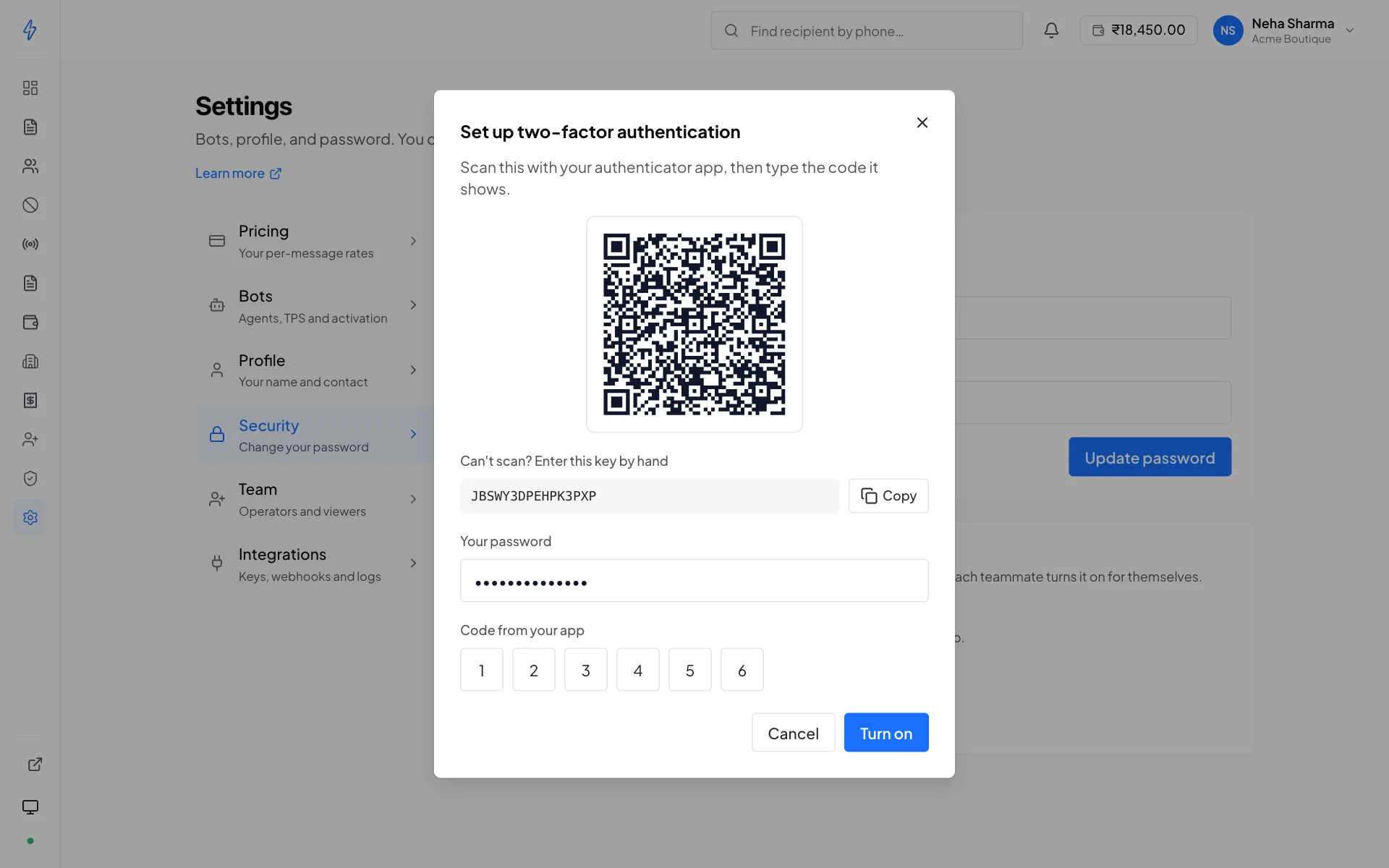
Open Settings and start setup
A QR code appears, along with the secret in text form for authenticator apps that cannot scan.
Scan it with an authenticator app
Google Authenticator, Authy, 1Password, Microsoft Authenticator, any TOTP app works.
Enter the code it shows, and your password
The code confirms the app is paired. The password is asked for the same reason turning 2FA off asks for it: without it, anyone with a stolen session could pair THEIR authenticator to your account and lock you out for good. You could not even disable it, because that needs a code only they could produce. Until both are given, 2FA is not enabled, so a half-finished setup cannot lock you out either.
Save your recovery codes
Ten single-use codes appear. This is the only time they are shown. See below.
Recovery codes
Ten codes, each usable once, each a way in when your authenticator is not available.
Save them now, somewhere that is not your phone
They are shown once and never again. Storing them only on the phone that holds the authenticator defeats the point, if you lose the phone, you lose both. Put them in a password manager, or print them.
Settings shows how many remain unused. When you are running low, regenerate , that issues a fresh set of ten and invalidates every old one.
Regenerating requires a live code from your authenticator, not a recovery code. That is deliberate: letting one recovery code mint ten more would make a single leaked code permanent access.
Signing in with 2FA on
Enter your email and password as usual, then the current code from your app. If you cannot reach the app, use a recovery code instead. It is consumed and cannot be reused.
Turning it off
Requires your password and a current code (or a recovery code). You cannot disable it with the password alone.
If you lose your authenticator
If you have a recovery code, sign in with it, then disable and re-enable 2FA to pair a new device.
If you have neither the app nor a code, support can reset the second factor. Email [email protected] from the account's registered address.
What a support reset does
It removes the second factor and emails the account holder to say so. It never reveals or re-issues your existing secret. Nobody at Splashify can see it. After the reset you sign in with your password and set 2FA up again from scratch.
Audit log
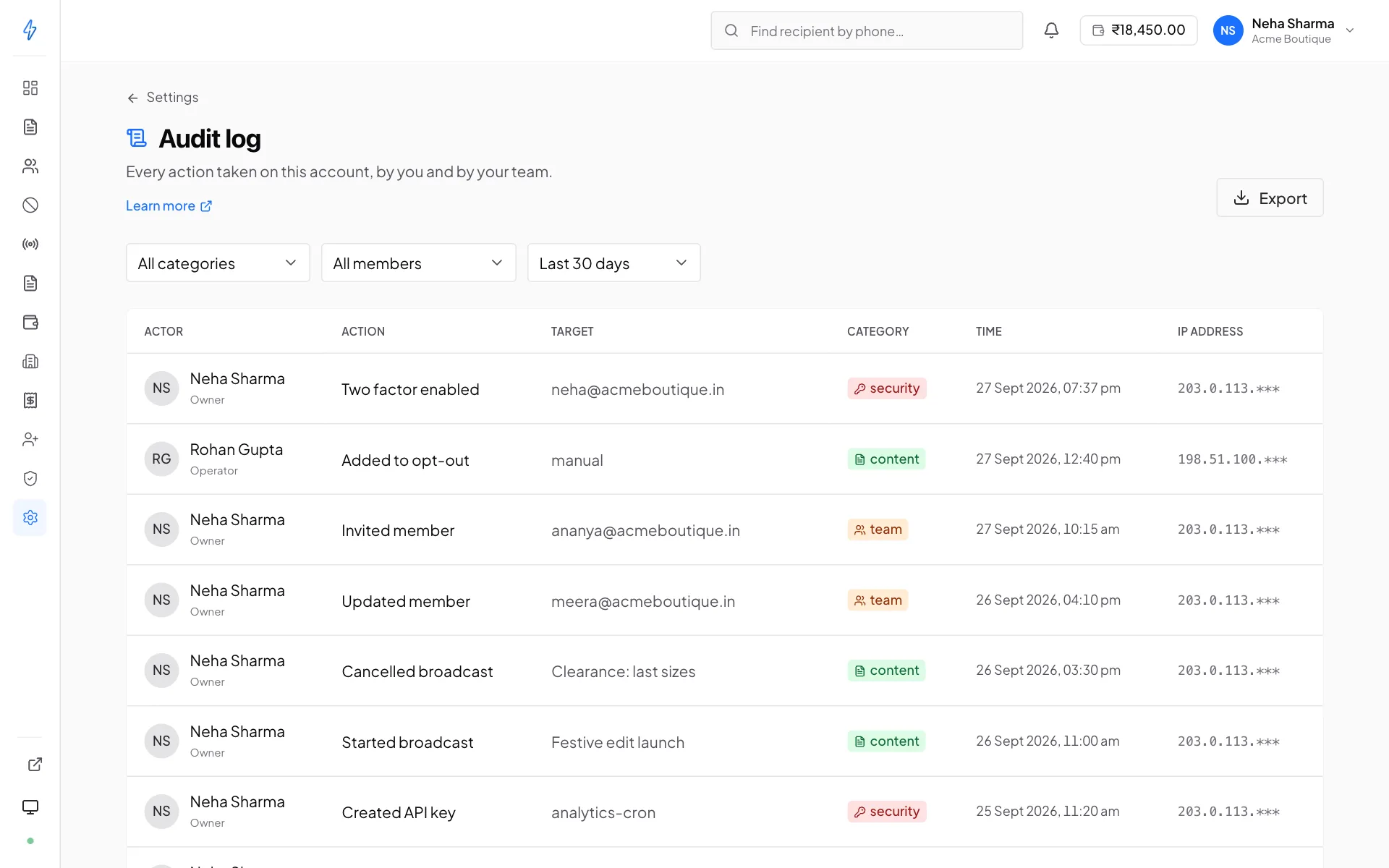
Under Settings → Audit log. The changes made on the account, by you and by your team: who did it, what they did, and when.
Owner only, deliberately
The log is per-account and records what every member did. An operator or viewer reading it would be reading their colleagues' activity, so it is owner-gated.
What it records:
- Broadcasts started and cancelled
- Templates created and deleted
- Opt-outs added, removed and imported
- Numbers not on RCS removed from a list after a broadcast
- Team invites, member changes and removals, and invites revoked
- API keys created and revoked
- Webhooks created, changed and deleted, and signing secrets rotated
- The billing profile, wallet recharges and bot applications
- The default bot, the daily spend limit and the test phone
- Password changes, and two-step verification turned on or off, recovery codes made again, or reset by support
- Changes our support team makes to your bot's message type or application
Sign-ins are not in the audit log. To see where your account is signed in, use Sessions and devices.
Use it to answer:
- Who cancelled that broadcast?
- When was this number added to the opt-out list, and by whom?
- Who created the API key that is still being used?
- Did anyone change a team member's scope last week?
An older account may show nothing yet
The audit log was added after the panel shipped, so an account served by an older build shows a notice rather than an empty table. Nothing is missing from your account, recording simply starts when that build reaches you.
Sessions and devices
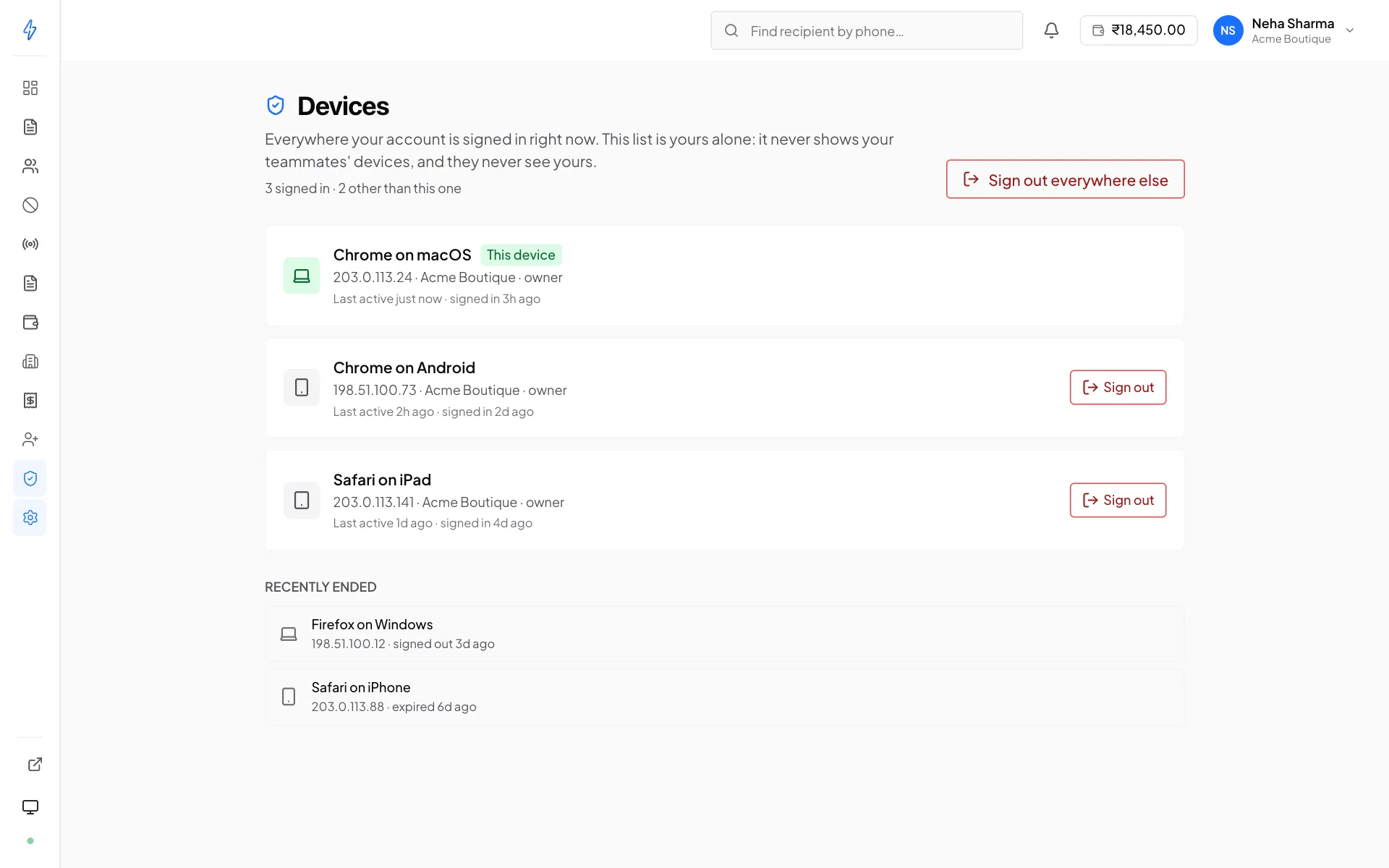
Settings -> Devices lists everywhere your account is signed in: the browser or phone, the address it connected from, when it signed in and when it was last active. Every one except the device you are using has a Sign out button, which takes effect on that device's very next request, not whenever the session would have expired.
The list is yours alone. It shows the sign-ins for your email address, never your teammates', and they cannot see yours. If you belong to more than one account with the same email, all of your sign-ins appear together with the account named on each row.
Sign out everywhere else
One button ends every session except the one you are using, across every account you belong to. It is the right first move when you are not sure what is signed in, or when a laptop or phone has gone missing. You stay signed in where you are.
Sessions last seven days. Ended ones stay in the list for a while under Recently ended, which is the part worth reading: a sign-in you do not recognise, from a place you have not been, is the reason to change your password rather than just sign it out.
Three other things end a session, and it is worth knowing which is which:
Support can force-sign-out an entire account, which is the right response to a suspected compromise. Ask for it and change the password immediately afterwards.
Practical advice
- Use a role address as the owner
[email protected]outlives an individual. A personal address means account recovery depends on one person still working there.- Give people their own logins
Sharing the owner login makes the audit log useless and means removing one person's access means changing everyone's password. Invite them properly →
- Turn 2FA on for anyone who can send
An operator's account can spend your wallet and message your customers under your verified brand.
- Review team access quarterly
Roles accumulate. Ten minutes on the Team page once a quarter catches the contractor who finished in March.
- Rotate API keys on a schedule
And revoke any whose
last_used_athas stopped moving. How to rotate →