
Team members
Colleagues sign in with their own email and password and only see the bots you grant them. Nobody should be sharing the owner login.
Go to Team. Only the account owner can see or use this page.
The three roles
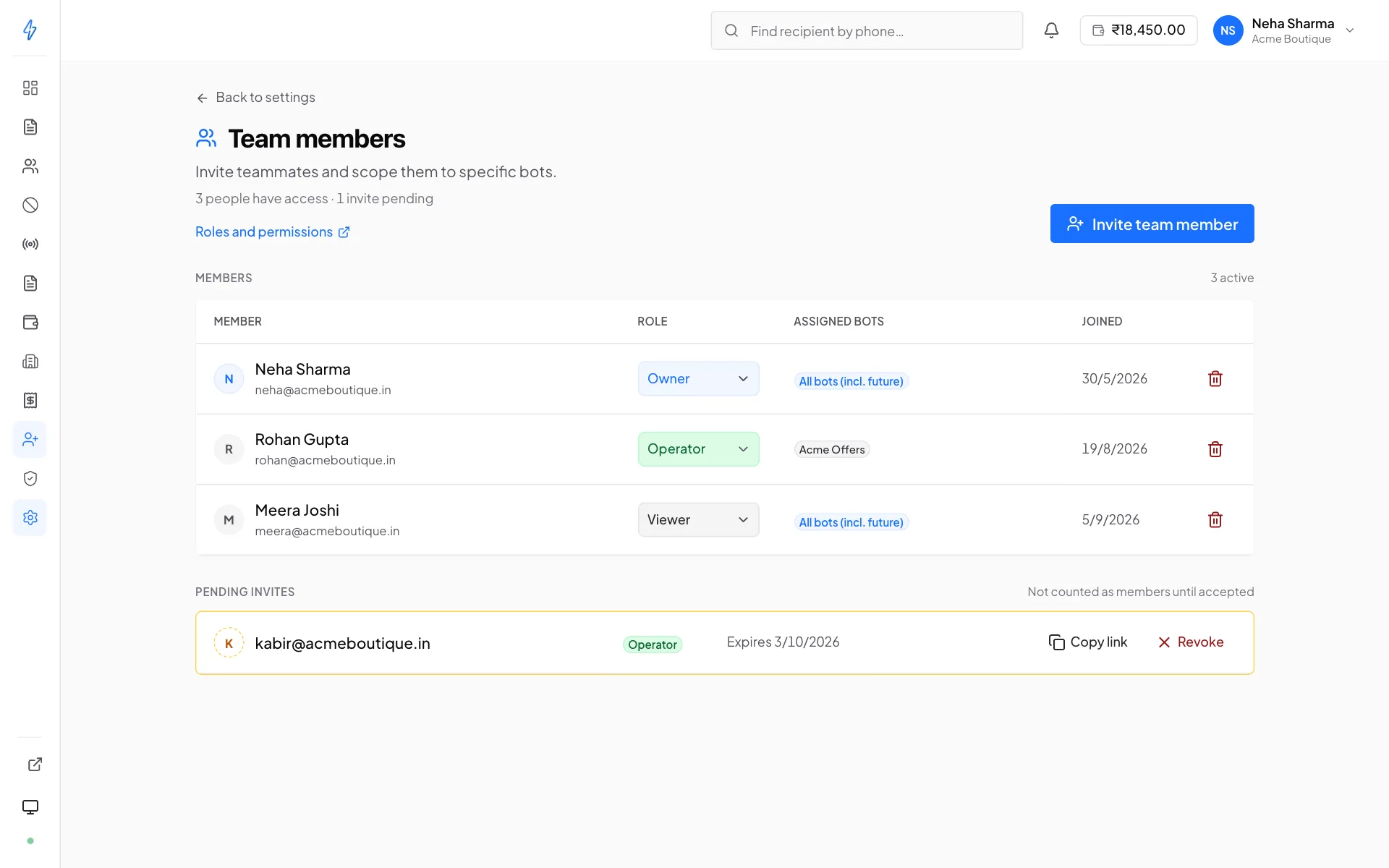
There is exactly one owner per account: the email that signed up. Ownership cannot be transferred from inside the panel, contact support if someone is leaving.
Default to viewer
Most people who ask for access want to look at numbers. Give viewer first and raise it when somebody actually needs to send. Changing a role takes seconds and does not disrupt their sign-in.
Bot scoping
Every member is scoped to specific bots, or to all bots, which includes any bot created in future.
This is what makes multi-brand and agency setups work: the person running your promotional sender need not see your OTP traffic, and a contractor on one brand sees nothing of the others.
Scope applies consistently. A member outside a bot's scope cannot send from it, and does not see its broadcasts, templates, stats, reports or recipient history.
Why two people see different numbers
Scope is the usual answer when a colleague reports missing data. Check their assignment here before assuming something is wrong with the account.
Inviting someone
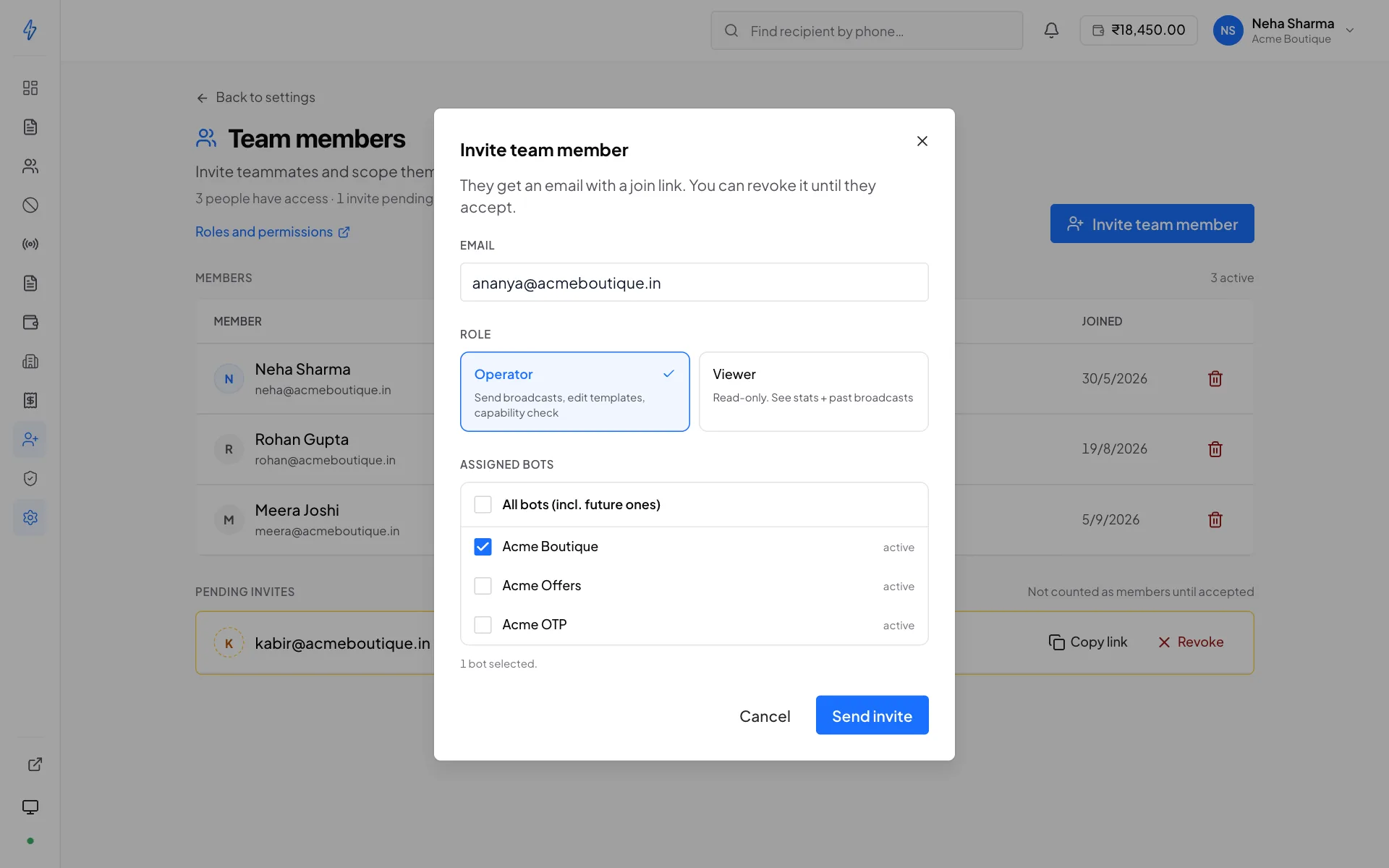
Invite
Enter their email, choose operator or viewer, and pick the bots, specific ones, or all.
They get an email
With a link that is valid for 7 days.
They accept
If they have never used Splashify RCS, they set a name and password. If they already have an account, they just accept, no second password.
They appear as active
On the Team page, with their role and bots.
Pending invites are listed separately with their expiry, and can be revoked before they are accepted.
Invite links are effectively credentials
Anyone who opens the link gets the access it carries. Send it to the person's own work address, not to a shared channel, and revoke it if it goes anywhere unintended.
Changing a role or scope
Edit a member to change their role, their bots, or both. Changes apply to their next request. They do not need to be told to sign out and back in.
Removing someone
Removing a member revokes their access to your account immediately. Their own sign-in still works if they belong to other accounts; they simply no longer see yours.
Remove people the day they leave
A departed employee's access does not lapse on its own. Removal is instant and reversible. You can always re-invite. Leaving it "until we're sure" is how a former contractor still has send access six months later.
People on more than one account
An email can own one company's account and be a member of others. When they sign in, a Choose account screen lists everything they have access to, with their role in each.
Their role and scope come from the account they pick, not from the email, so being an owner elsewhere grants nothing here.
What members cannot see
Even with all bots assigned, an operator or viewer never sees:
- The wallet balance or recharge screen
- Invoices or the billing profile
- The Team page
- The bot application form
- API key management
- The audit log
Those menu entries are hidden entirely, which is why a colleague may describe the panel as looking different from yours.