
Reports and exports
The dashboard tells you how things are going. Reports let you pick a window, a bot, and take the numbers away.
Go to Reports. Every role can use it; the data is scoped to the bots you have been granted.
Summary
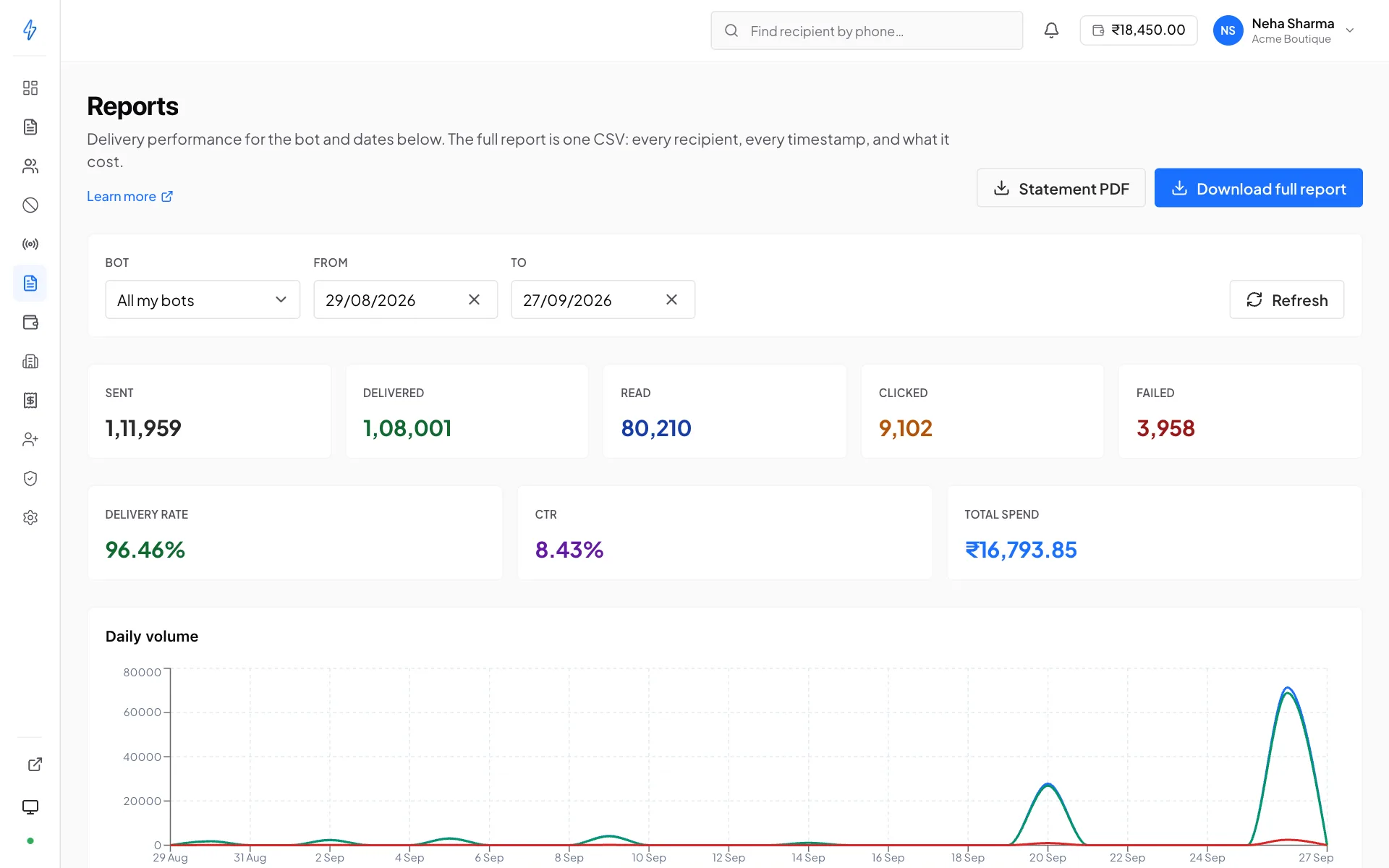
Choose a bot and a date range and the page totals every broadcast in that window: sent, delivered, read, clicked and failed, then the delivery rate, CTR and total spend. The Daily volume chart shows what was sent, delivered and failed each day.
To find the send that underperformed, compare the rows on the Broadcasts page, where each broadcast has its own delivered, CTR and failed counts.
Compare like with like
A promotional send and an OTP send have different delivery and read profiles for reasons that have nothing to do with quality. Filter to one bot, or one campaign type, before drawing conclusions.
If a window has no broadcasts, the page says so and suggests widening the range rather than showing an empty table.
Message log
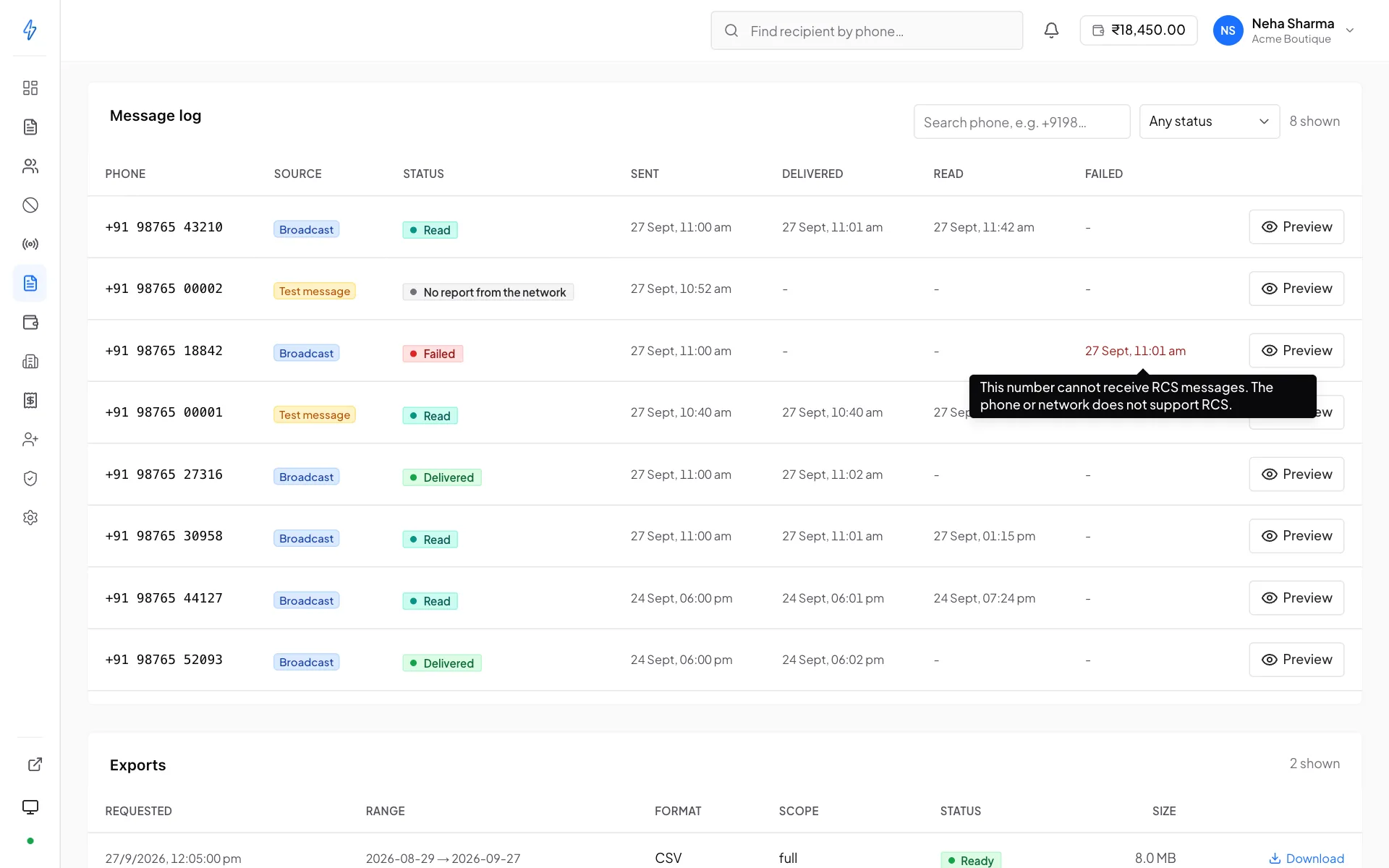
The Message log under the chart has one row per message in the range. It answers the question the totals cannot: what happened to one person.
Broadcasts and test messages both show up here. The Source column tells them apart: Broadcast, or Test message for a test you sent to your own phone with Send test to, in the broadcast composer or the template editor.
The log is newest first. A test message sits at the time it was sent. A broadcast's messages stay together as one block, placed at the time the broadcast finished, or started if it is still running. So a test you sent this afternoon is above a broadcast that went out this morning.
Each row shows the phone number, the status, and when the message was sent,
delivered, read or failed. To find one person, type their number in the search
box, for example +919876543210. To see only one outcome, pick Sent,
Delivered, Read or Failed in the status filter. Queued and
No report from the network are not in the filter.
An empty page while you filter
A search over a busy range reads the log a part at a time. A page can come back with Nothing matched in this part of the log yet. Press Next to keep searching.
Statuses
Why a message failed
When a message fails, its time under Failed is shown in red. Hover it to see the reason. The same reason appears in red in the message's preview, under the delivery times.
No report from the network
Now and then the network never tells us what happened to a test message. After 24 hours without a report, the test is marked No report from the network, so it does not sit at Queued forever. If a report arrives later, it replaces No report from the network.
It does not mean the message failed. It may well have reached the phone. If you need to be sure, send another test and check the phone.
Previewing a message
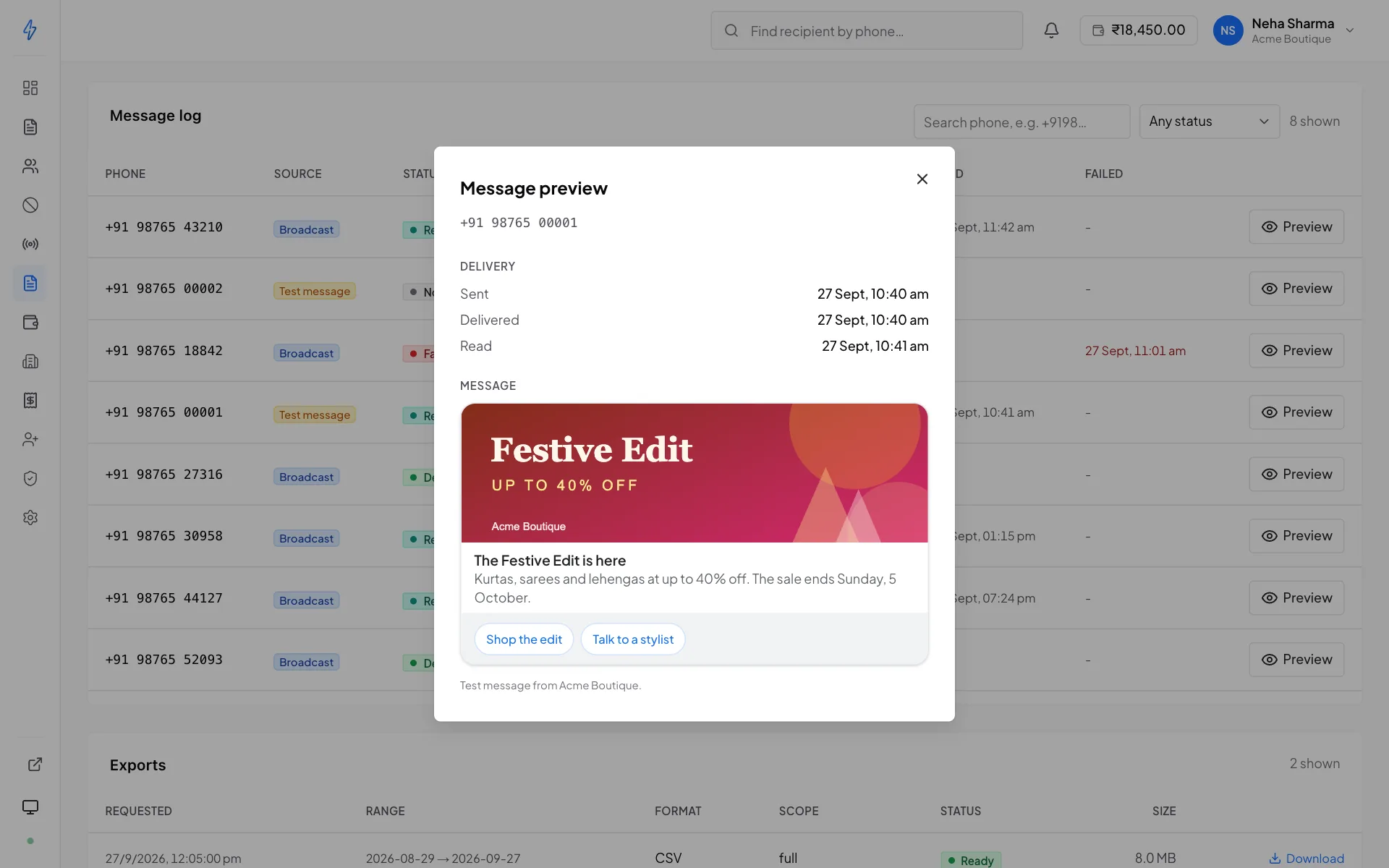
Press Preview on any row to see the exact message that was sent, with that person's own values filled in. The dialog also lists the delivery times and, for a failed message, the reason.
This works for test messages too. A test opens the message that went to your phone, and the note under it reads Test message from and your bot's name.
Exports
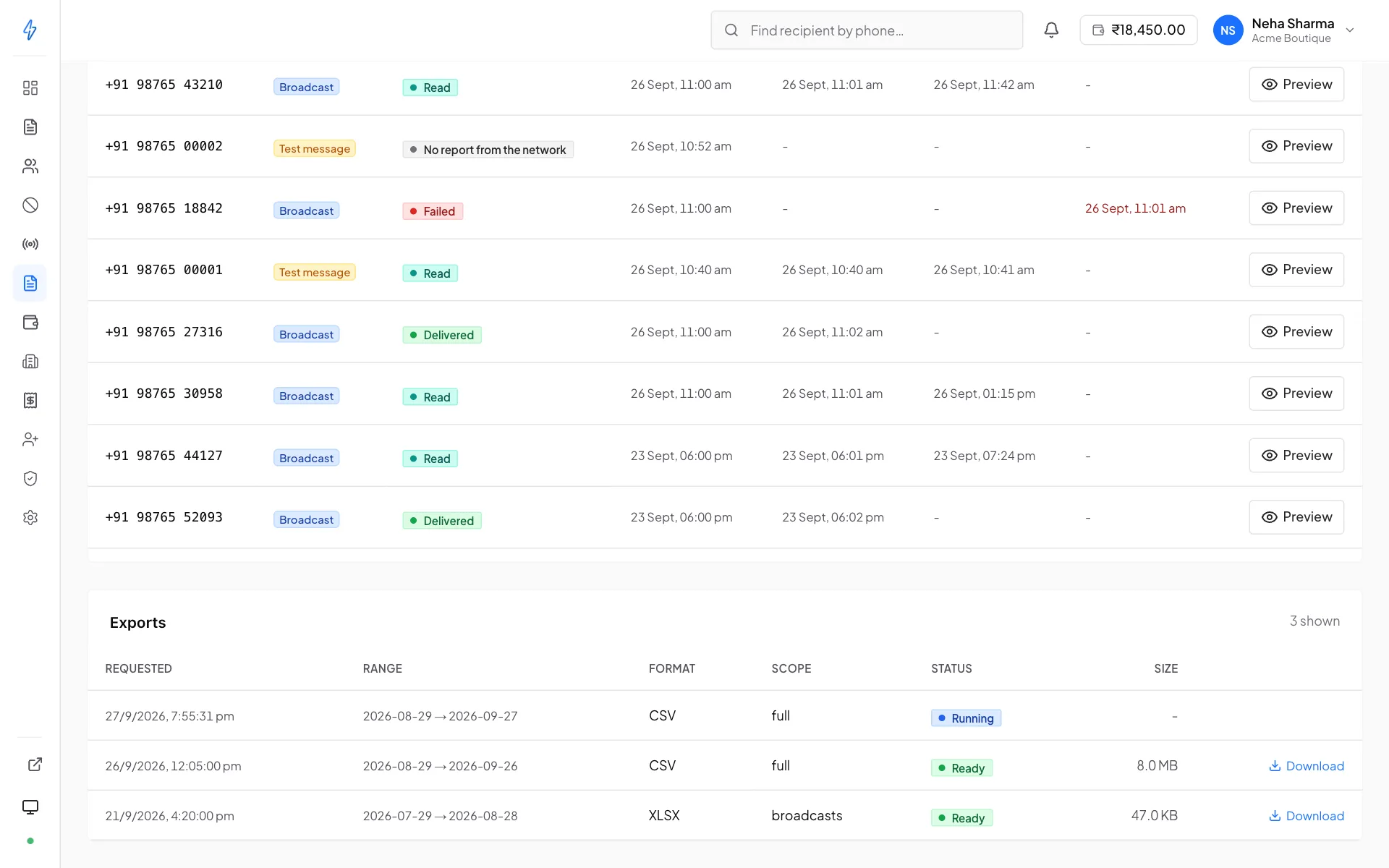
For anything beyond the summary, per-recipient rows, pivot tables, joining against your own data, request an export.
Download full report is the one to use. It is a CSV with one row per recipient, for every broadcast in the range you have selected, and its last line is a TOTAL.
Times fall back down the funnel
Not every carrier reports every stage. A message that was read was certainly delivered, and a
delivered one was certainly sent, so a stage with no timestamp of its own borrows the next one
down. That is why you will not see a blank sent_at against a message somebody has visibly read.
failed_at is the time we attempted the send. The carrier does not give us a separate failure
timestamp.
Only charged messages carry a cost
A failed or unreachable recipient shows 0, because that is what was billed. The TOTAL is
therefore what the range actually cost you, not what it would have cost if everything had landed.
Set the filters you want exported
The export uses the bot and date range currently selected.
Request it
The export is generated in the background. You do not need to keep the page open.
Collect it
Finished exports appear in the exports list with their status, size and a download link, and the file is emailed to you when it is ready.
Next to it, Statement PDF downloads at once: a statement of what was charged for the same bot and dates. If nothing was charged in that range, it says so instead.
The exports list keeps recent requests, so you can re-download a file without regenerating it.
Large exports take a while
A wide date range over a busy account is a lot of rows. That is why it runs in the background and emails you rather than blocking the page, a request that looks stuck is usually just large.
Deleting a template does not erase what you sent
Every row in the message log has a Preview button showing the message that recipient actually received, with their own variable values filled in.
That keeps working after the template is deleted. The panel stores a copy of the template when the broadcast is created, so the log is reading what was sent rather than looking the template up again. Editing a template afterwards does not change old previews either: they show what went out, not what the same template would produce today.
You can delete templates whenever you like without losing your record.
One gap, and it is behind you
Messages sent before this was introduced have no stored copy. If their template has already been deleted, those older previews are gone and cannot be recovered. Everything sent from now on is safe.
Which report answers what
- How did last month go?
Summary, month range, all bots. Read the totals and the rates.
- Why did that one campaign do badly?
Open the broadcast itself. Its Why messages failed card groups the failures by reason, and the Recipients tab gives each recipient's outcome with its reason, which the summary cannot.
- Which numbers keep failing?
Export the range and filter by failure reason. Unreachable numbers are candidates for a reachability check rather than another send.
- What did we spend?
Total spend and the Statement PDF show what a range cost. Use Wallet and billing for your balance and top-ups, and Invoices for what was billed.
Scope
An operator or viewer sees only their assigned bots, in the summary and in exports alike. An owner sees the whole account. If two people export the same range and get different row counts, that is scope, see Team.