
Managing bots
A bot is one verified RCS sender. An account can run several, each with its own identity, price and send rate, all drawing on the same wallet.
Your bots live on Settings → Bots. Each row shows the bot's name, its bot ID, its status, its send-rate budget (TPS) and when it was activated. Your per-message prices are on Settings → Pricing.
Statuses
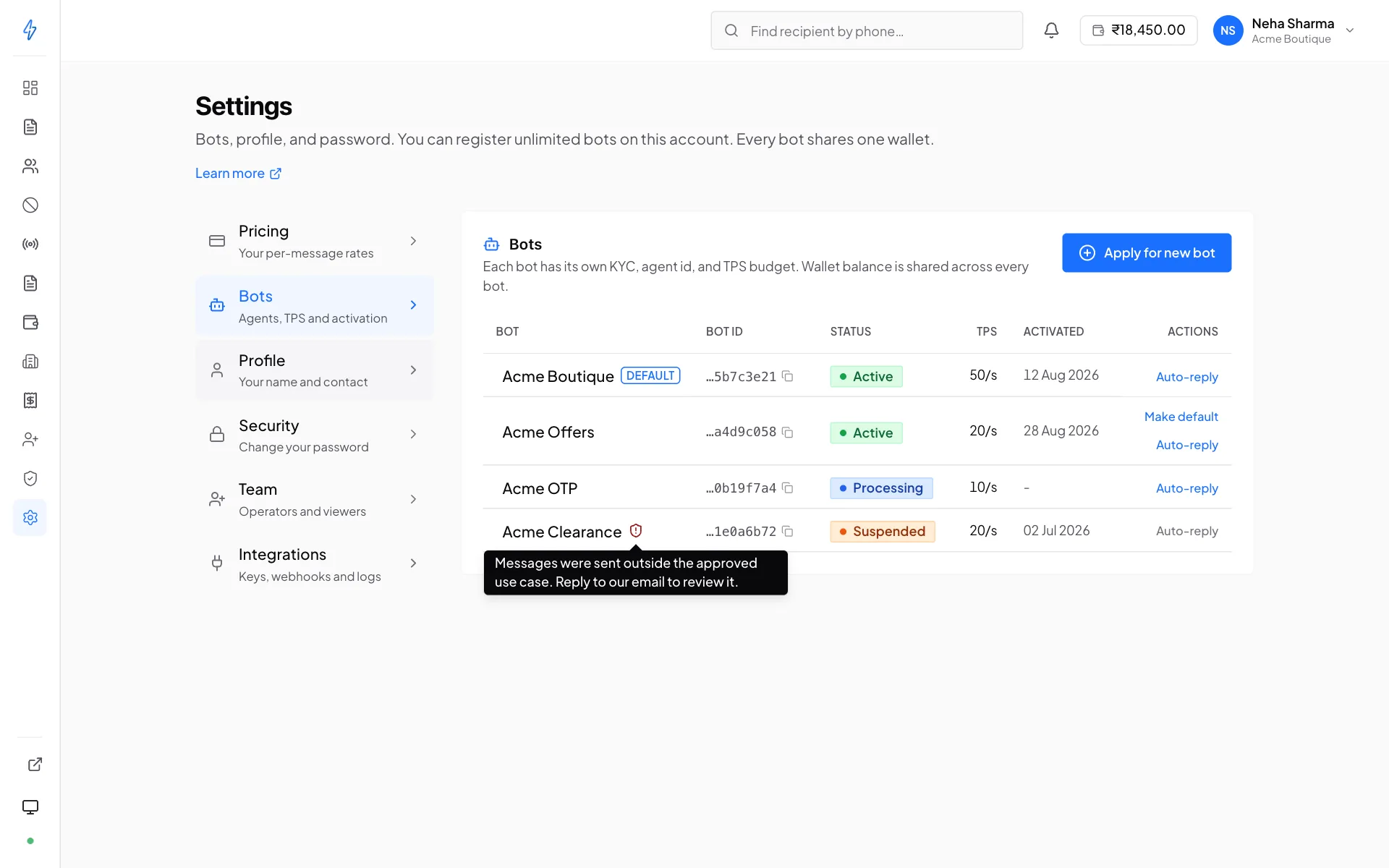
Only active bots can broadcast. A broadcast, a one-off send or a test send
against a status that does not allow it returns a clear error naming the bot
rather than failing silently.
Processing, and why it exists
We can set your bot's credentials up as soon as you have applied, without waiting for the carrier. A bot in that state is Processing: everything is configured, and the only thing outstanding is the approval.
While it is processing you can:
- Send a test message to your own number, from the broadcast composer or the template composer. This is the point of the state: it proves the credentials work before the carrier finishes, so an approval does not turn into a second round of debugging.
- Receive messages and answer them. Auto-replies fire normally, including the built-in STOP and START rules. Somebody who messages you first still gets an answer.
None of it is charged
Every message a Processing bot sends is free: test sends from either composer, and any auto-reply that fires while you are trying a keyword out. You are proving the bot works, which is part of setting it up rather than traffic, so a wallet balance of zero does not stand in the way of any of it. Charging starts when the bot goes Active.
Whether a message was free is decided as it is sent and recorded against it, so a delivery receipt that arrives after your bot is approved will not go back and charge for something that was free when it left.
You cannot broadcast. The bot does not appear as a sender option for one, and the composer says why if you select it. That holds for every way a broadcast can start, not just creating one: starting or sending a draft you prepared earlier, retargeting a finished broadcast, and resuming a recurring schedule all check the bot again at the moment they run. A broadcast built while a bot was Active cannot be sent later on one that no longer is.
It goes live on its own
When the KYC is approved the bot becomes Active by itself. There is no second button to press and nothing to ask us for: any broadcast you had queued up can simply be sent.
Running more than one bot
Common reasons to add a second:
- Separate brands under one company
- Splitting promotional from transactional traffic, so a marketing suspension cannot take down your OTPs
- Different regions, with their own support contacts and language
What each bot owns independently:
- Its verified identity, name, logo, banner, colour, support contacts
- Its own KYC application and approval
- Its TPS (send-rate) budget
- Its per-message price
- Its templates and auto-reply rules
- Its opt-out list, a STOP to this bot suppresses that number on this bot only
What is shared across the whole account:
- The wallet, every bot debits the same balance
- Numbers you opt out for All bots on the Opt-out list
- Billing profile, invoices, team members, API keys and webhooks
A STOP stops one bot
A STOP reply suppresses the number only on the bot it was sent to. Someone who calls or writes to ask you to stop usually means your company, so add them with All bots. Honouring it on only one bot is the kind of behaviour that gets a sender suspended.
What your bot is registered to send
When you apply for a bot you declare a message type, and the carrier provisions the sender for that kind of traffic. It is a registration, not a preference. You cannot change it from the panel, and the carrier enforces it against the messages that actually reach handsets.
Why transactional and OTP bots cannot broadcast
A broadcast is bulk unsolicited outbound: one template fanned out to a contact list. To the carrier that is promotional traffic regardless of what the template says, so it is only permitted on a sender registered for it.
A Transactional or OTP bot is provisioned for the opposite shape: one message at a time, each triggered by something the recipient just did. Pointing one at a 50,000-row list is a registration breach, and the consequence lands on you, not on us, the carrier suspends or throttles the agent, and you usually find out when an unrelated OTP stops arriving.
So the panel does not offer those bots in the broadcast composer, and the API
refuses them with bot_not_promotional.
Nothing is taken away from a transactional bot
Every one-off path stays fully available: the send-message API, test sends, auto-replies and every inbound-triggered reply. That is the correct integration shape for this traffic anyway, your order pipeline calls the send endpoint per event, which is both what the carrier expects and what stays within the rules.
If you need both kinds of traffic
Run two bots. It is exactly what multi-bot accounts are for, and it is the only way to do it: the carrier issues these three categories and nothing that combines them. It also keeps a promotional suspension from taking down your OTPs, which is worth having on its own.
A blank message type means no rules are applied
Bots approved before we started recording the message type have it unset. Those bots are not restricted by any of the above, not because they are exempt, but because we do not know what they were registered as. The carrier still enforces its side. If Settings → Bots shows no message type for a bot you broadcast from, ask support to set it before you rely on the gate.
Getting it corrected
If a bot is registered as the wrong type, usually a Transactional application whose real use case is marketing, contact support. An administrator can set it on the KYC record, and the change takes effect immediately. You cannot change it yourself, because it has to match what the carrier approved.
The default bot
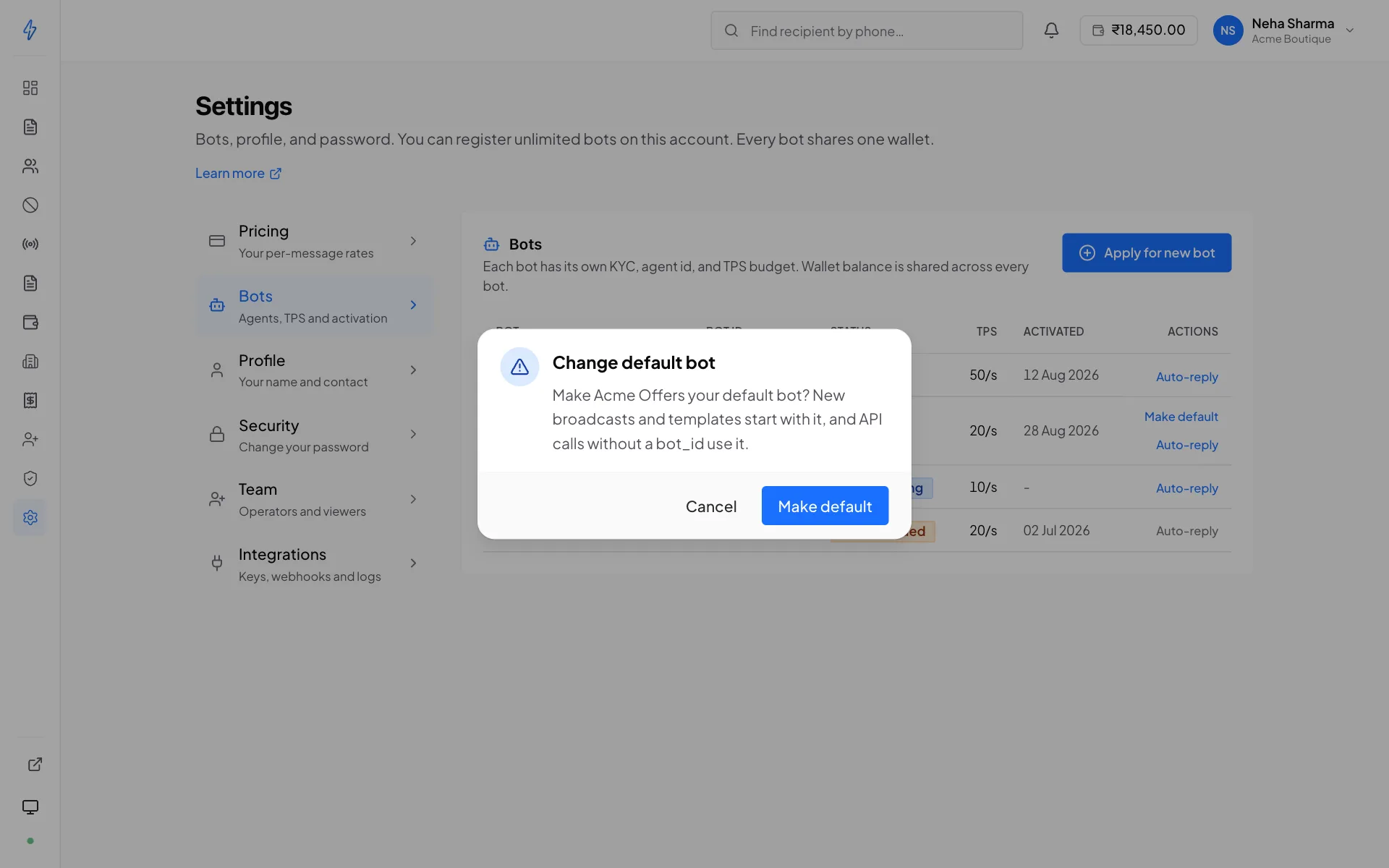
One bot carries the DEFAULT tag next to its name on Settings → Bots. The default bot:
- Is picked first in the broadcast, recurring broadcast and template composers, and in the number check and opt-out pages. You can still pick another bot each time.
- Is the bot an API call uses when it has no
bot_id: single sends, creating a broadcast, template review and the audience count. - Sets the price that the sends remaining estimate uses.
- Is the first choice for the check that Keep only contacts that can receive RCS runs on upload, when it supports number checks.
Changing it does not change the bot of a broadcast you already made, and it does not move templates, lists or opt-outs between bots.
Changing the default bot
Open Settings → Bots
Find the bot you want. It must be Active.
Press Make default
The panel asks, for example, Make Acme Offers your default bot? New broadcasts and templates start with it, and API calls without a bot_id use it. For a Transactional or OTP bot it says only that new templates start with it, because those bots cannot run broadcasts.
Confirm
Press Make default in the dialog. You see Default bot changed, and the DEFAULT tag moves to that bot.
Only the account owner sees Make default, and only on active bots that are not the default already. Every change is recorded in the audit log.
If you only ever run one bot, you will never think about this. If you run several, get into the habit of confirming the bot selector before you send. It is the field most easily left on the wrong value.
Send rate (TPS)
TPS is how many messages per second the carrier will accept for that bot.
The allocation is made at account level and then divided among your bots, so adding a second bot does not add capacity. It shares what you already have. New accounts start with a standard allocation that is comfortably more than a first campaign needs.
A broadcast is paced to stay inside the budget, which is why a large send completes over minutes rather than all at once. That pacing is deliberate: exceeding the budget produces gateway rate-limit rejections, and a throttled send that finishes is better than a fast one that fails halfway.
If sends are consistently finishing later than your campaign windows need, ask support to raise the TPS. It is not something you can change from the panel. Expect a few working days: the carrier reviews the request against your actual volumes, so include what you are sending and what you need it to be. Contact support →
Rules that come from the carrier, not from us
TPS is one of several limits Splashify passes through rather than sets. The others, the promotional message cap, the 7am–10pm window, and the reputation score that moves the cap, are collected on one page. Sending rules and limits →
Per-message price
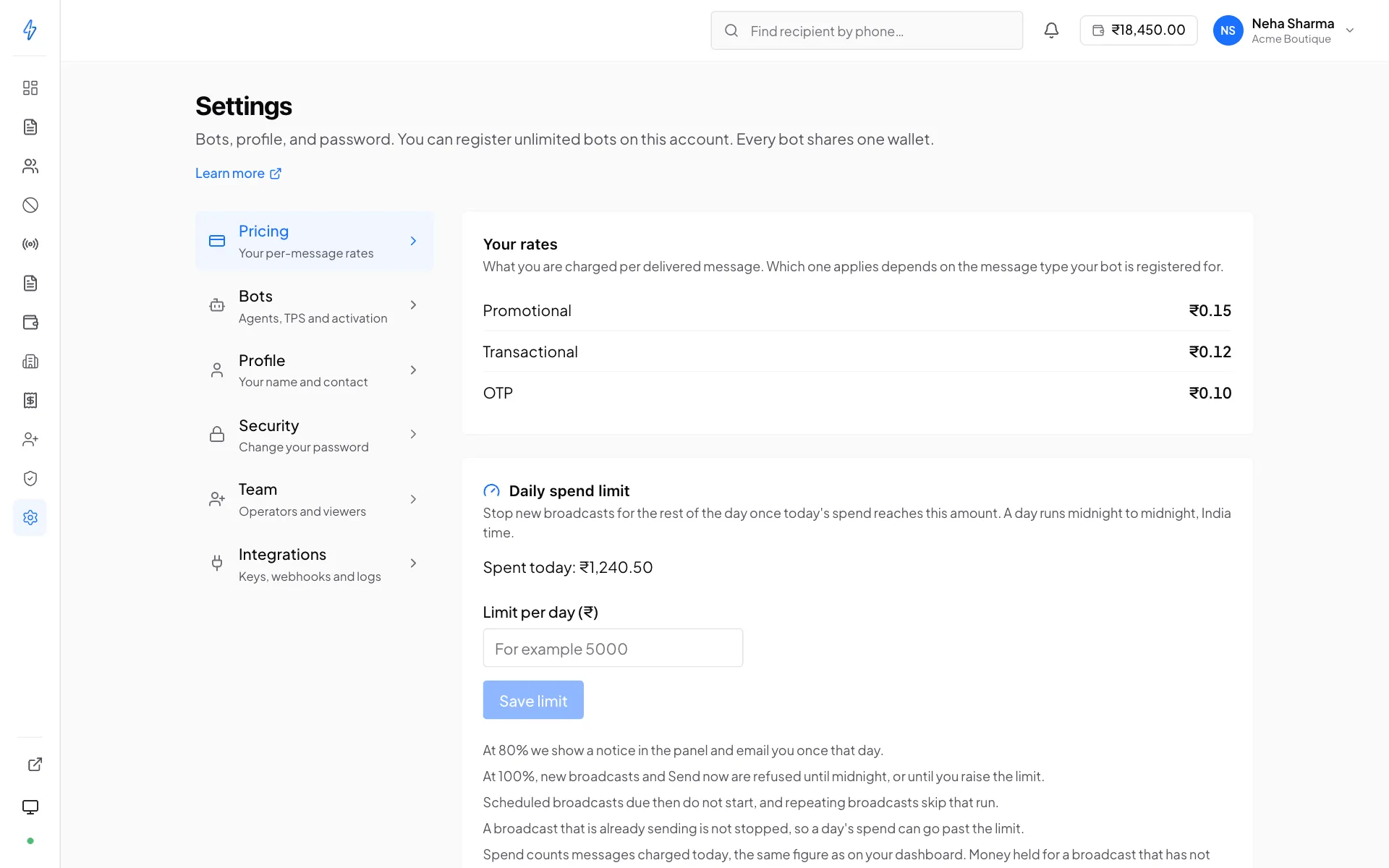
Your prices are on Settings → Pricing: the price of each message the network accepts, for each message type, promotional, transactional and OTP. A message that fails after the network accepted it is refunded. Which one applies depends on the message type the bot is registered for, so two bots on the same account can pay different prices.
The dashboard's "sends remaining" figure uses the price of your default bot, so treat it as an estimate when your bots are priced differently.
Suspension
An administrator can suspend a single bot without touching the rest of the account. Only that bot stops; every other bot keeps sending.
A suspended bot has a red shield next to its name on Settings → Bots. Point at it, or tap it, to read the reason, verbatim. The same text is emailed to the account owner. Broadcasts and sends targeting it return an error naming the bot.
Reactivation clears the reason and unblocks sending immediately, and sends a "your bot is active again" email. There is nothing to re-submit.
Bot suspension is not account suspension
If the whole account is suspended, all sending stops across every bot, but templates, lists, invoices and past broadcasts stay readable. Both cases state their reason.
Adding another bot
Use Apply for RCS again. It is the same form and the same review, and the same uniqueness rules, with one carve-out that matters for multi-brand companies: your own account may reuse its GSTIN and brand website across bots. Only reuse by a different account is refused.